Onboarding
To help new users get their account ready quickly, OpenPanel can show a guided setup wizard the first time you log in.
The Onboarding wizard must be enabled by the Administrator. Steps for things you've already set up are left out: the Webserver step is skipped once you have a domain, Database once you have a database, Backups once a backup destination is configured, and the 2FA option once 2FA is enabled.
When it appears
The wizard opens automatically on your first login, before you've added a domain or a database. It won't reappear once you finish it, skip it, or close it — whichever comes first.
Steps
The wizard only asks about what's actually available on your plan — each step below only appears if the matching feature is enabled for your account. Nothing here can be revisited from the wizard once you move past it, but every setting it touches can also be changed later from its regular page in the sidebar.
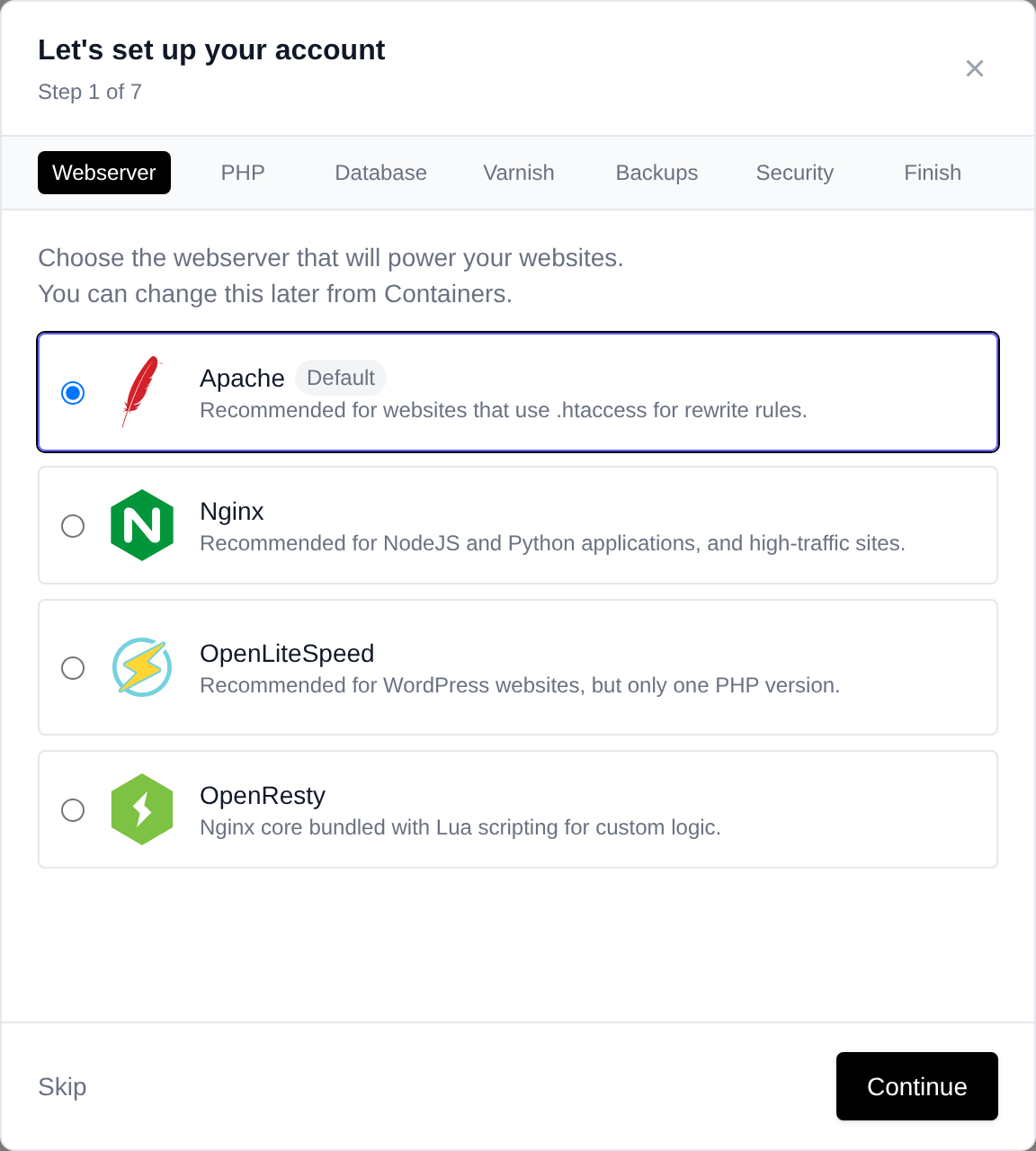
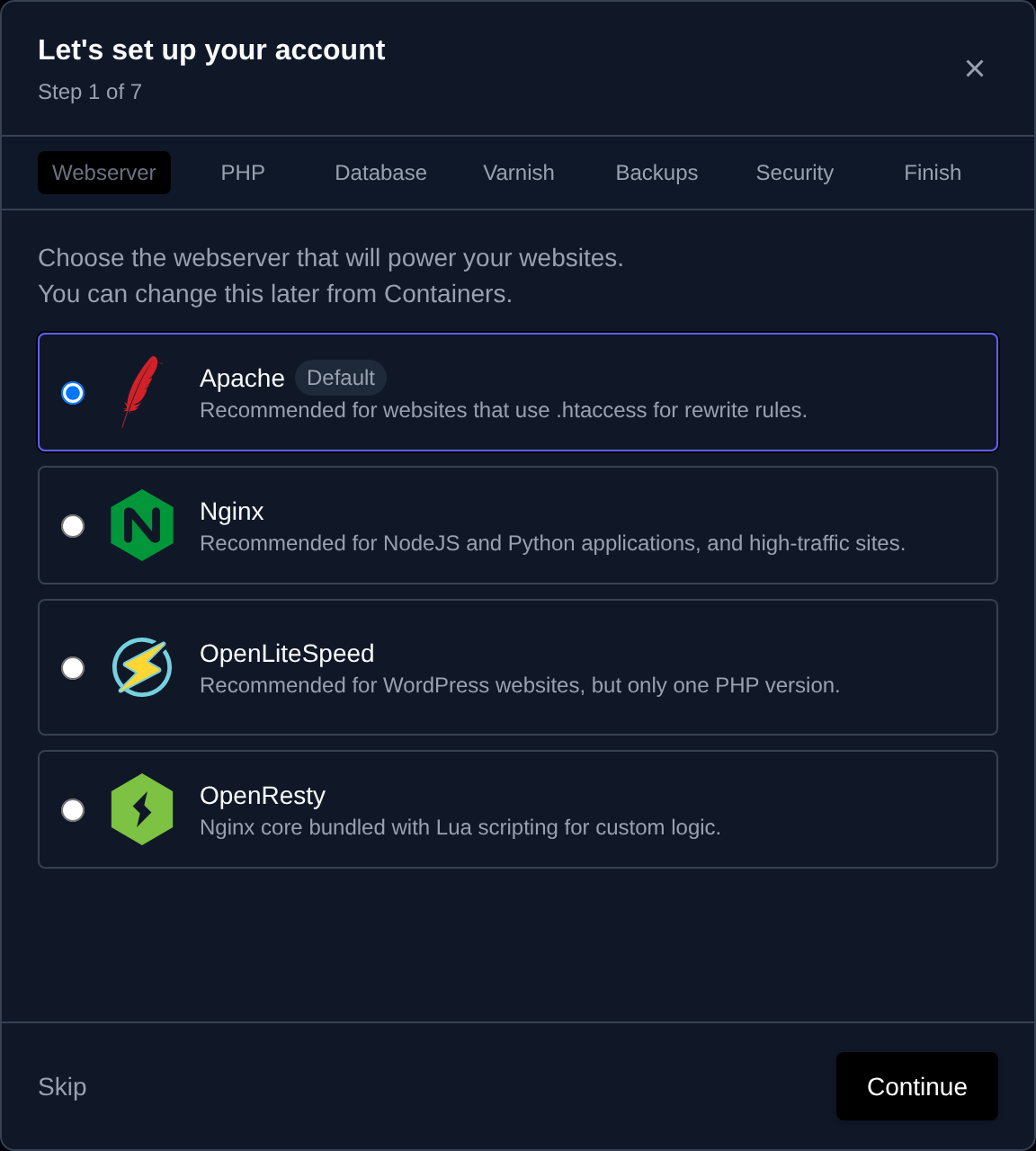
| Step | Shown when... | What you can do |
|---|---|---|
| Webserver | You're allowed to change your webserver container | Choose Apache, Nginx, OpenLiteSpeed, or OpenResty as the webserver for new domains. |
| PHP | The PHP feature is enabled | Choose the default PHP version for new domains (skipped on OpenLiteSpeed, which always uses the latest version). |
| Database | You're allowed to change your database container | Choose MySQL or MariaDB as your account's database server. |
| Varnish | Varnish Caching is enabled | Enable or disable Varnish caching in front of your webserver. |
| Backups | Backups is enabled | Pick a backup destination (S3-compatible, WebDAV, SSH, Azure, or Dropbox), enter its credentials, and choose what to back up. The wizard tests the connection before continuing. |
| Security | WAF, IP Blocker, 2FA, and/or Passkeys are enabled | Pick one security feature to set up: enable the Web Application Firewall, add blocked IPs/CIDR ranges, set up Two-Factor Authentication, or register a Passkey. If more than one is available, you can go back and set up the others too. |
| Finish | Always | Jump straight into the Getting Started Tour, add a domain, upload files, create a database, or install a website — whichever of these your plan includes. |
Your hosting provider may also add extra steps to this list beyond the ones above.
Skipping
Every step has a Skip button that moves on to the next one without applying any change for that step. Skipping is always safe — none of these settings are required, and all of them can be configured later from their own page.
Closing the wizard (the × in the top-right corner) has the same effect as finishing it: it won't be shown again.
Starting over
The wizard is only shown once per account. If you'd like to go through it again, ask your Administrator to enable it and reset your onboarding status.