PHP
Deploy a Composer-based PHP application into an existing domain. Unlike the containerized Node.js, Python, Ruby, and Java application installers, a PHP application never gets a dedicated container: it never creates a new container, edits docker-compose.yml, or configures a reverse proxy. The domain's existing vhost already routes to its PHP-FPM (or LiteSpeed) container, so installing a PHP application is really just deploying Composer-managed code into that domain's docroot and, optionally, running Composer against it.
Step-by-step guide: Deploy a Laravel app (Composer, scheduler and queue workers)
Install a PHP Application
Navigate to OpenPanel > Websites > Install App and click Install PHP Application.

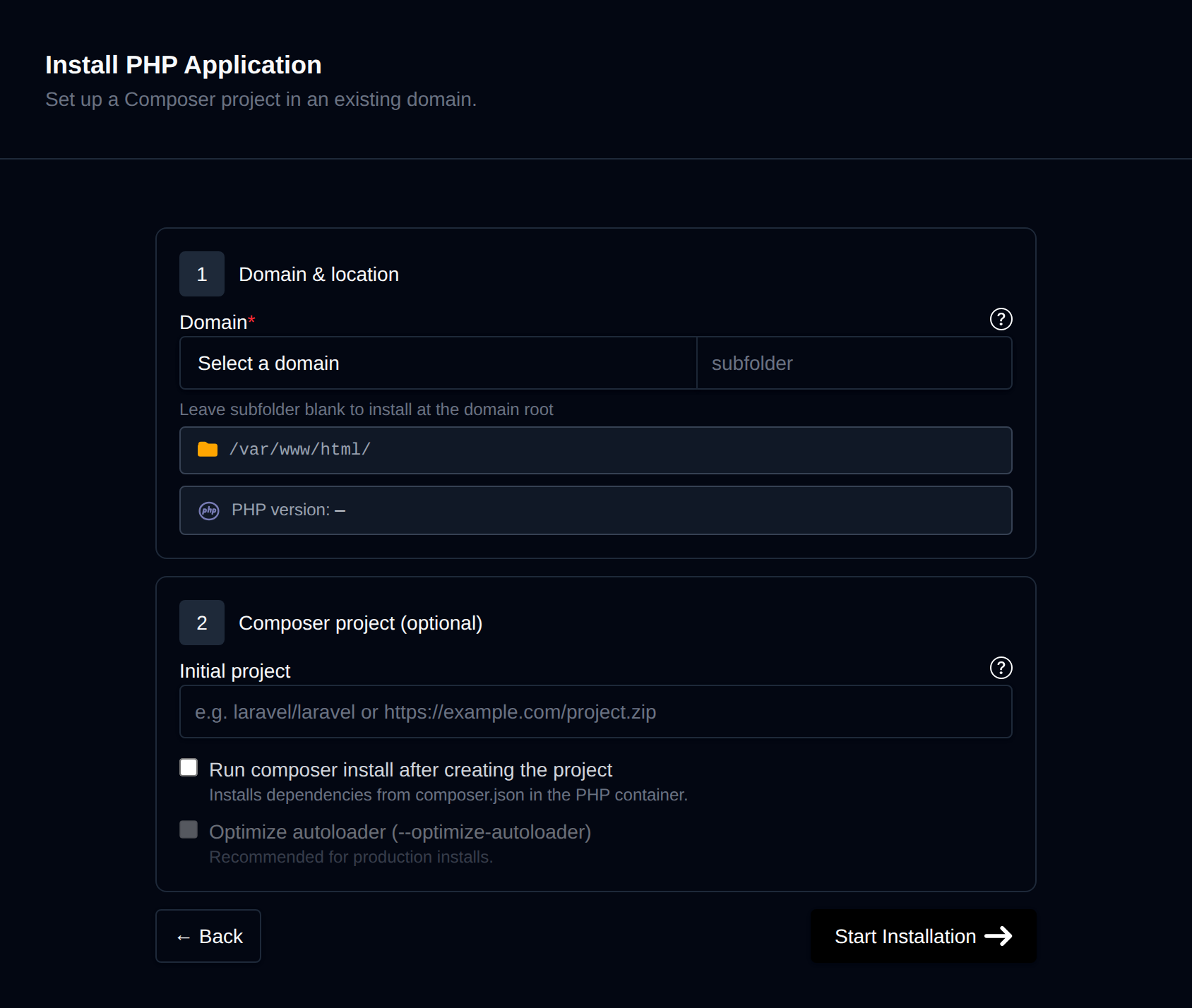
On the install page, configure:
- Domain / Subfolder – The domain (and optional subfolder) to install into. Leave the subfolder blank to install at the domain root.
- Initial project – Optional. Leave blank to deploy into a directory that already exists and already has its own
composer.json, or provide one of:- An
https://URL to an archive ending in.zip,.tar.gz,.tgz, or.tar— downloaded (capped at 200MB) and extracted directly into the docroot. - A Composer package name (
vendor/package, e.g.laravel/laravel) — installed viacomposer create-project.
- An
- Run composer install – Runs
composer installafter deployment. Required if the directory doesn't already contain a builtvendor/folder. - Optimize autoloader – Adds
--optimize-autoloaderto the composer run.
There's no Name, Port, Startup File/Command, Type, Version picker, or CPU/Memory allocation — none of that applies, since the app doesn't get its own container. The domain must already have a PHP version assigned (via PHP Selector) before you can install; otherwise the install fails immediately.
Behind the scenes, this starts the domain's php-fpm-<version> container if it isn't already running, then either downloads and extracts the archive host-side, or runs composer create-project <package> <path> --no-interaction inside that container. If Run composer install is checked, it then runs composer install --no-interaction (with --optimize-autoloader if selected) — both composer calls use --working-dir rather than podman exec's own working-directory flag, since the container's composer binary is itself a wrapper that otherwise resets its working directory regardless. The app's settings (initial project, composer flags, working directory) are recorded as .env keys under a synthetic prefix, since — unlike the containerized app types — there's no dedicated container to key them off of. The site is then added to Site Manager with type PHP. Progress is streamed live as each step completes.
Manage a PHP Application
Every PHP application shows up on the general Site Manager page (/sites) alongside your other websites. Click it to open its manage page, which has four tabs. All actions run against the domain's current PHP-FPM container, following whatever version PHP Selector currently has set.
Overview
Basic information about the application: its docroot, the PHP version in use (with a Change link to PHP Selector), and the initial project it was created from.
Composer
Re-run Composer against the project's composer.json at any time, without reinstalling the project:
- Composer install – Runs
composer install --no-interactionagainst the app's working directory, installing dependencies as currently declared incomposer.json/composer.lock. - Composer update – Runs
composer update --no-interaction, updating dependencies to their latest allowed versions. - Optimize autoloader – Adds
--optimize-autoloaderto the next run. - Edit composer.json – Opens
composer.jsondirectly in the File Manager's editor.
Output from the current run is shown live in an output pane below the buttons.
Logs
The full history of every Composer install/update run for the application, each entry timestamped with its command output, or "No Composer runs recorded yet." if none have run.
Remove
Delete Application removes the application from Site Manager and clears its stored .env settings. Docroot files and any database are left untouched (the same "all website data remains" behavior the Node.js/Python installers use), so you can still access them manually or add the app again later. Click Confirm delete to proceed.