Sites
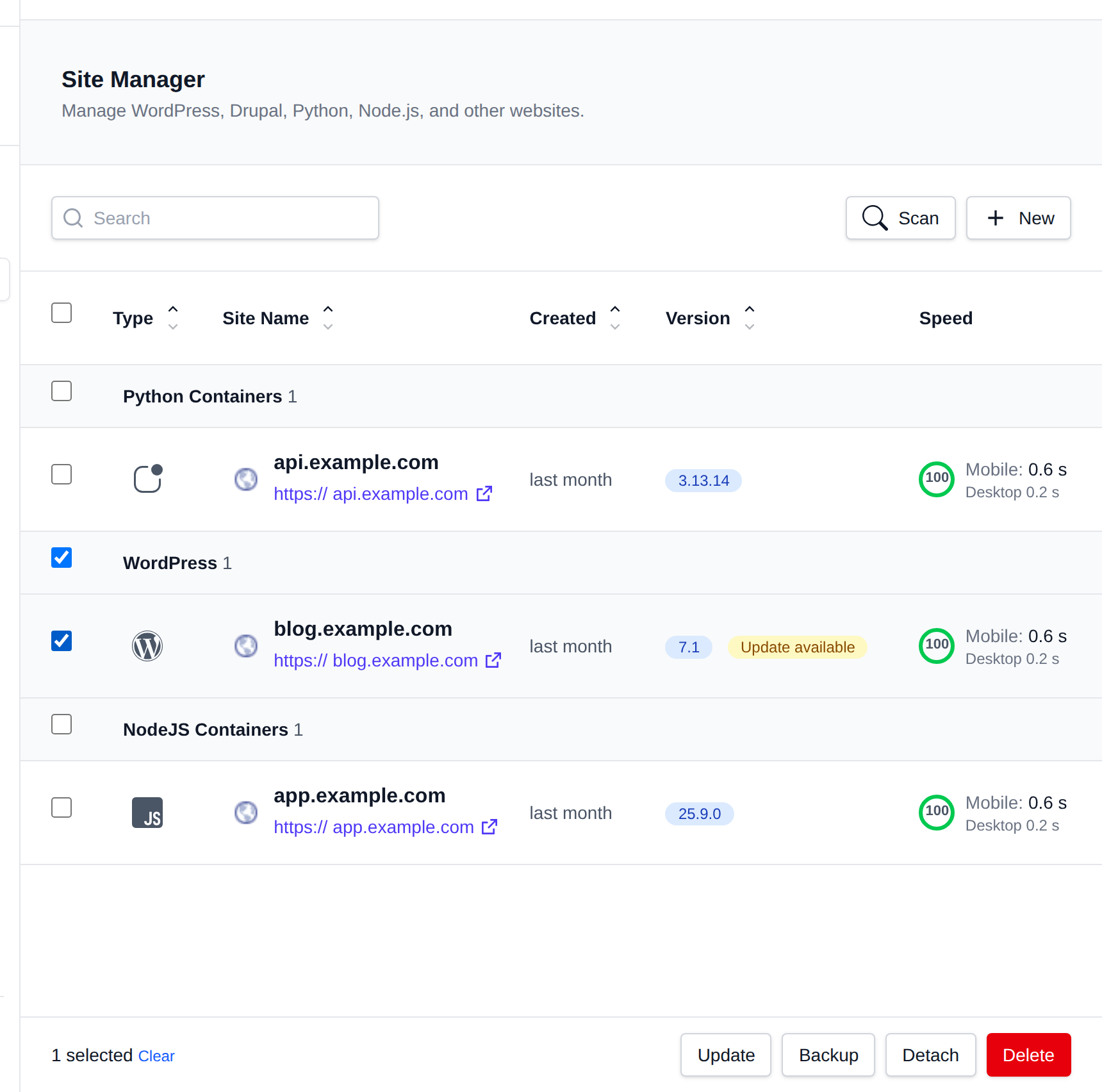
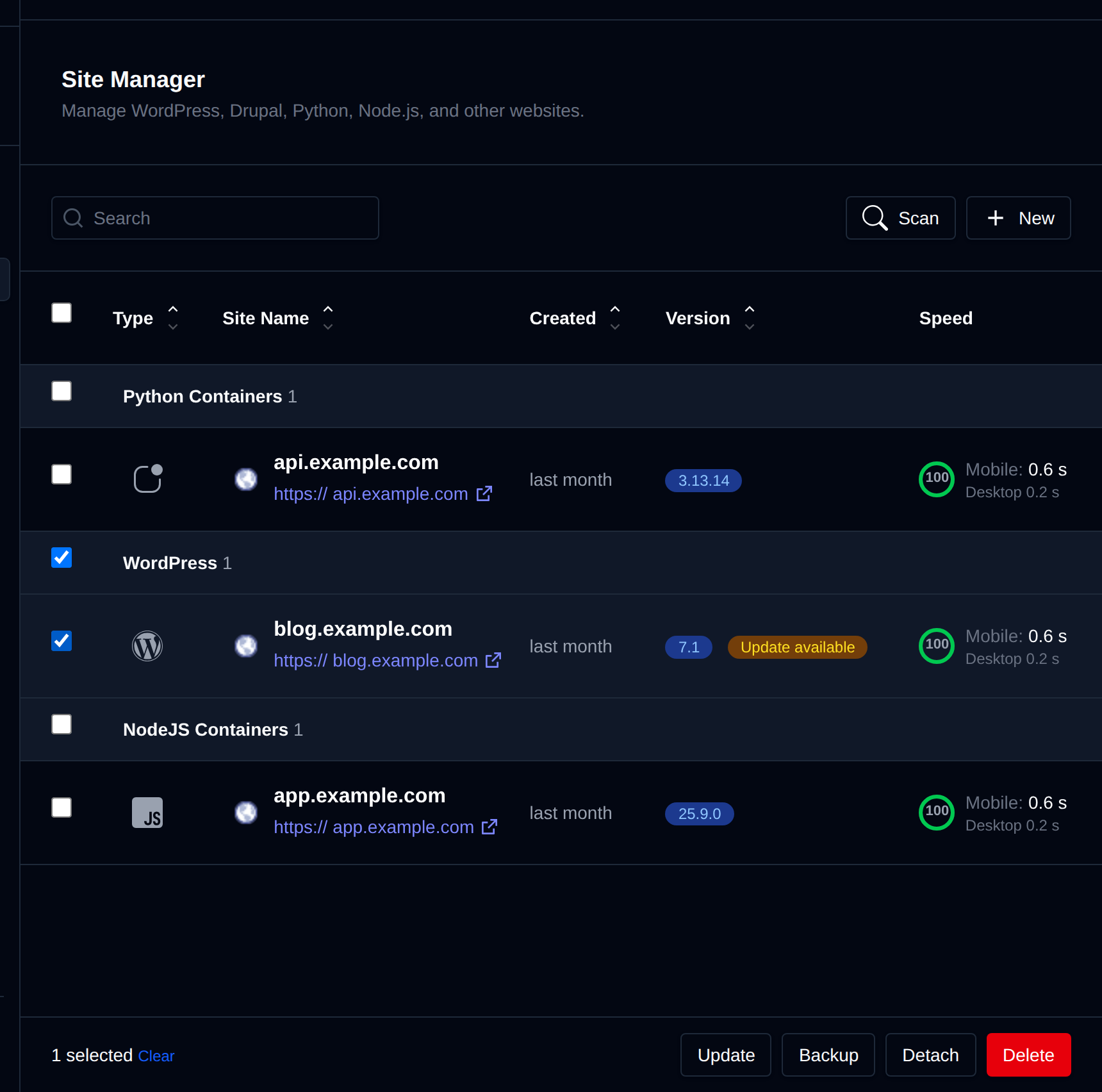
The Site Manager (/sites) lists every website on your account in one place — static sites, WordPress installs, Node.js/Python/Ruby/Java applications, domains pointed to a Docker container, and sites created via other installers (Drupal, Joomla, OpenCart, etc.) — grouped by type.
To create a new site, click + New Website, which opens the Auto Installer.
Table
Each row shows:
-
Type – The site's application/framework (WordPress, static HTML, Node.js, Drupal, etc.).
-
Site Name – Domain (or subfolder) the site is installed on, with its favicon.
-
Created – Date the site was added to Site Manager.
-
Version – The installed application version, when applicable. If a newer version is available upstream, an Update available badge appears next to it (checked for WordPress, Drupal, Joomla, and OpenCart sites).
-
Speed – A link to check the site on Google PageSpeed Insights.
-
Actions – Per-row buttons, shown depending on the site type:
- Login as Admin – One-click login to the application's admin area (WordPress sites).
- Manage (files icon) – Opens the domain's files in File Manager.
- Manage (site icon) – Opens the site's management page (the deeper per-site tabs, e.g. the WordPress Manager tabs for WordPress sites), or the Website Builder editor for builder sites.
- Clone – Copies the site's files and database to another domain.
- Backups – Jumps to the site's backup tab.
- Delete – Removes the site.
For Docker Containers sites, Manage opens the container's Edit page and Delete deletes the container, which also removes its reverse proxy from the domain.
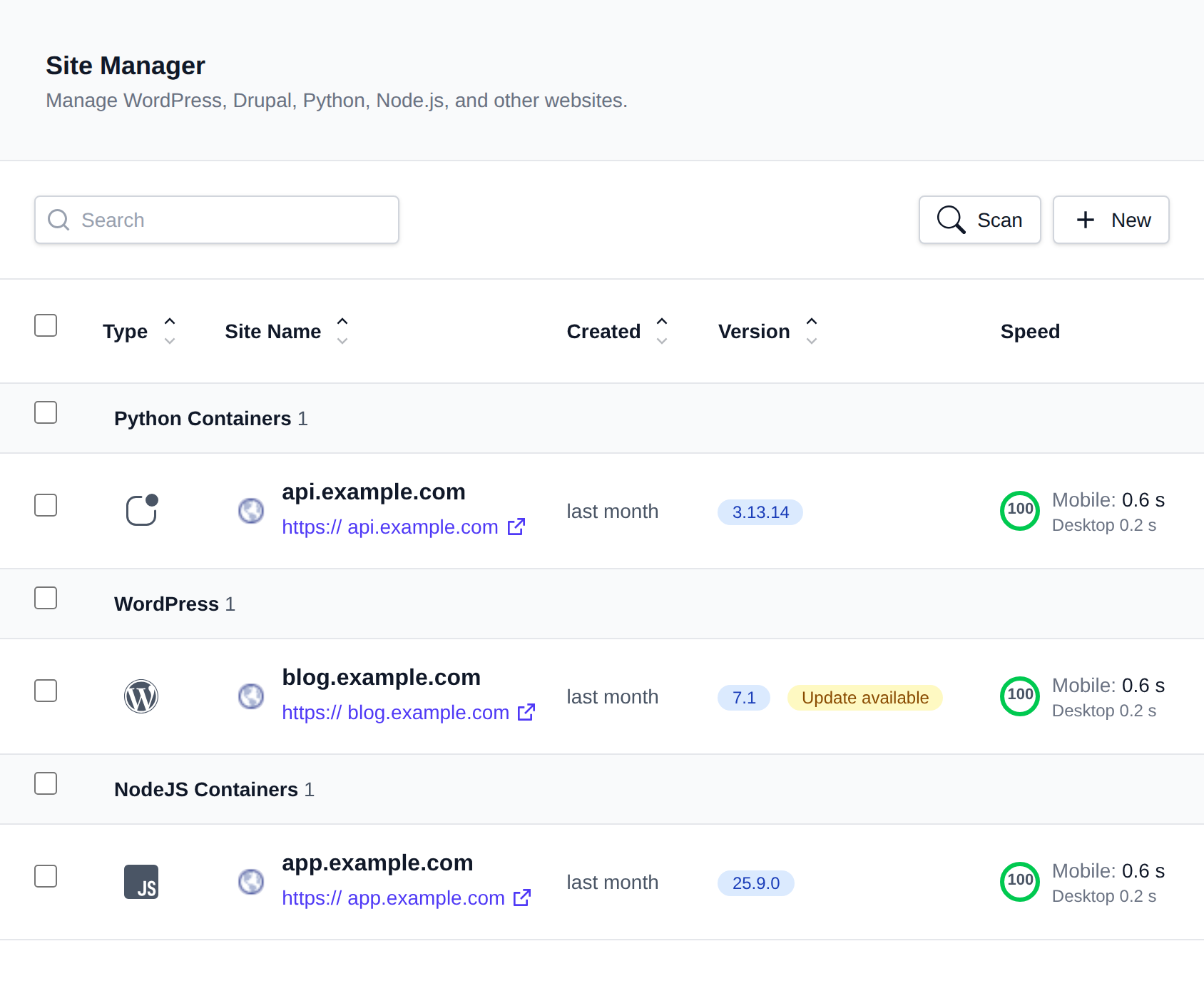
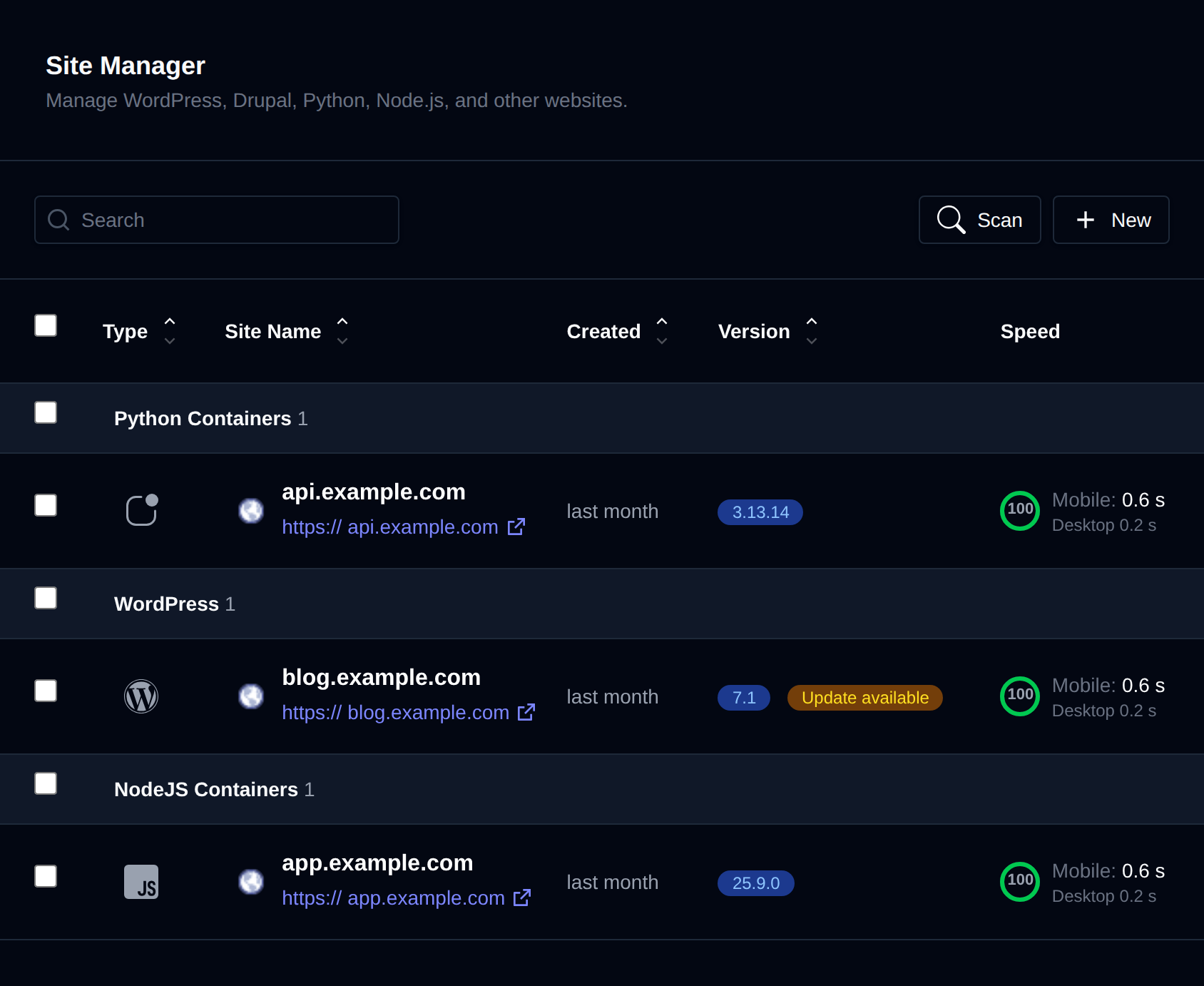
Use the Table/Grid toggle and column sort headers (Type, Site Name, Created, Version) to organize the list.
Scanning for Existing Installations
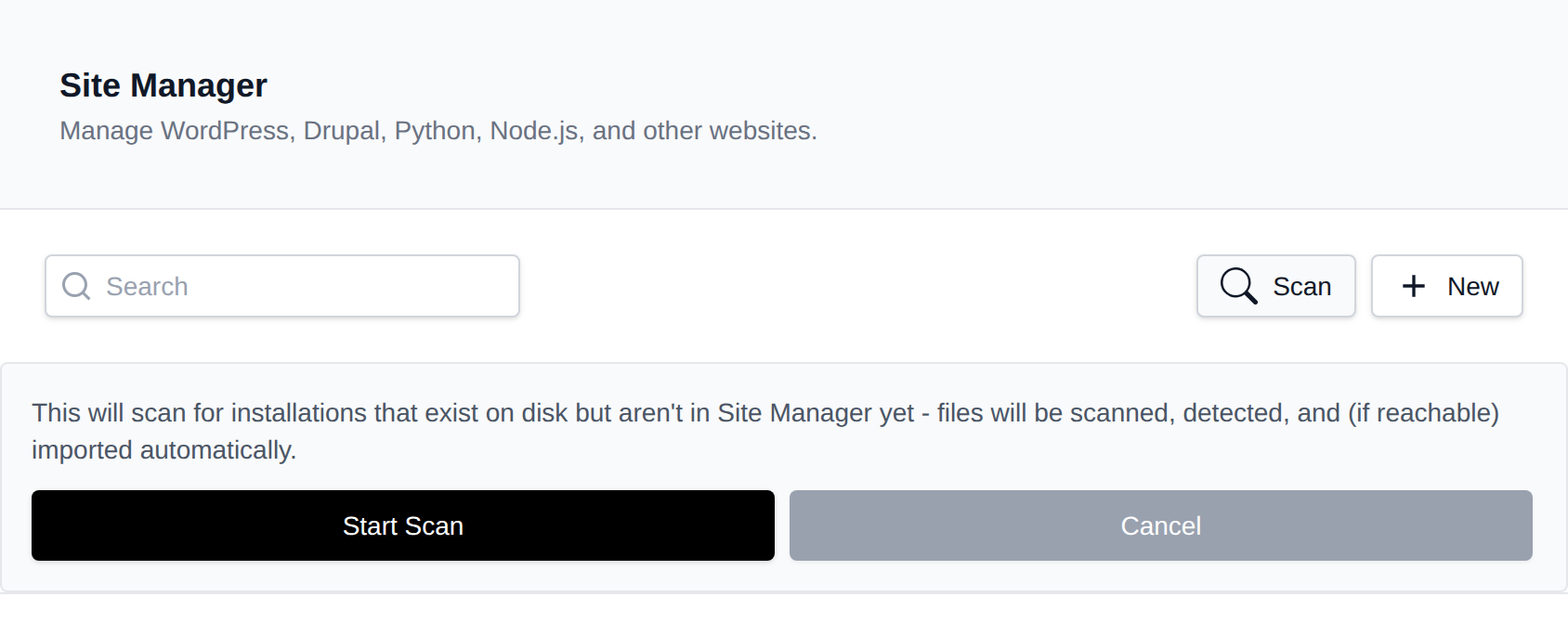
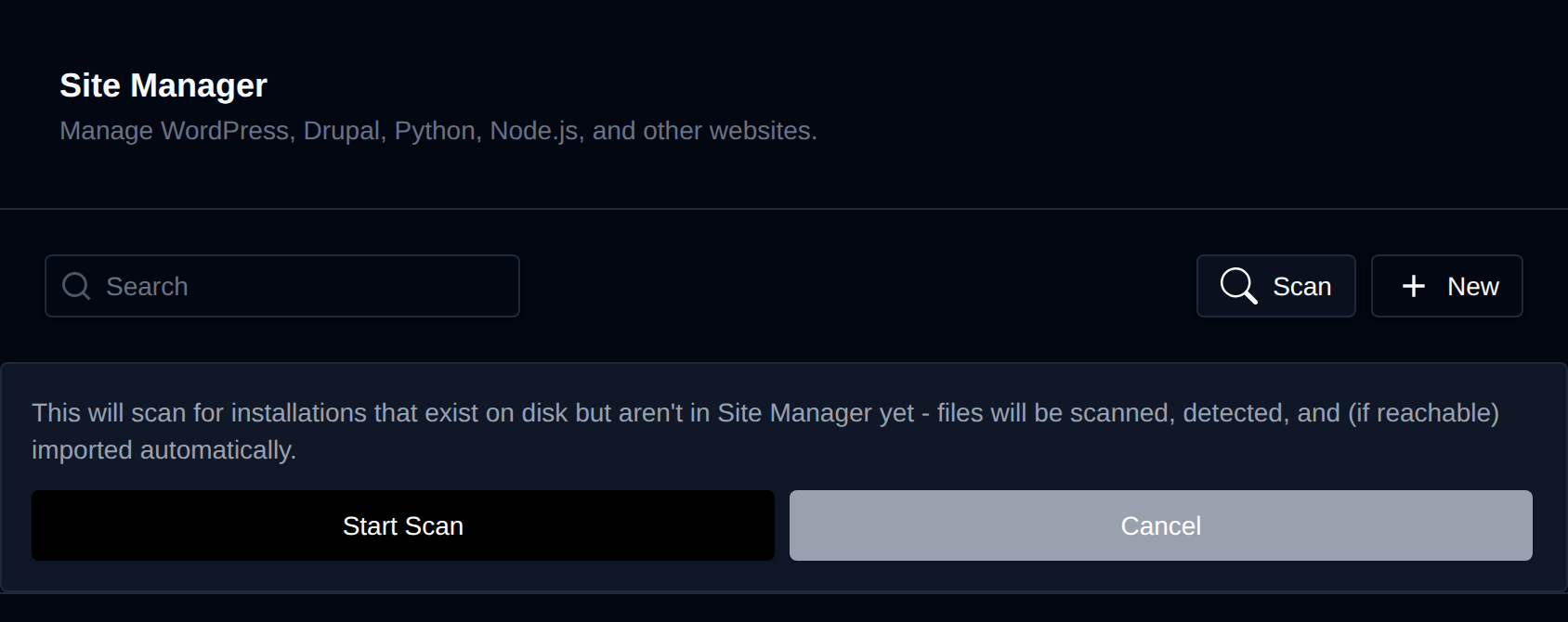
If an application was installed manually (outside Site Manager), click Scan to detect it. The scan looks for installation files across every supported application type on disk, repairs the database host in the detected config if it's empty, localhost or 127.0.0.1 (it becomes localhost, which PHP reaches through the MySQL socket, or the database container name on older accounts that don't have the socket yet), verifies the database connection, and imports any installation it finds as a new Site Manager entry.
Bulk Actions
Select multiple sites using the checkboxes to:
- Update – Update the selected sites to the latest available version (where supported).
- Backup – Create a backup of each selected site.
- Detach – Remove the sites from Site Manager only. Files and databases are left untouched.
- Delete – Permanently remove the selected sites, including their files and databases.
Each bulk action asks for confirmation before running.