Version: 2.0.28
Two-Factor Authentication
The Two-Factor Authentication is a recommended security feature that allows you to set up a second factor device. Essentially, during login, it requires not only your password but also a code from an application on your mobile phone.
Enable 2FA
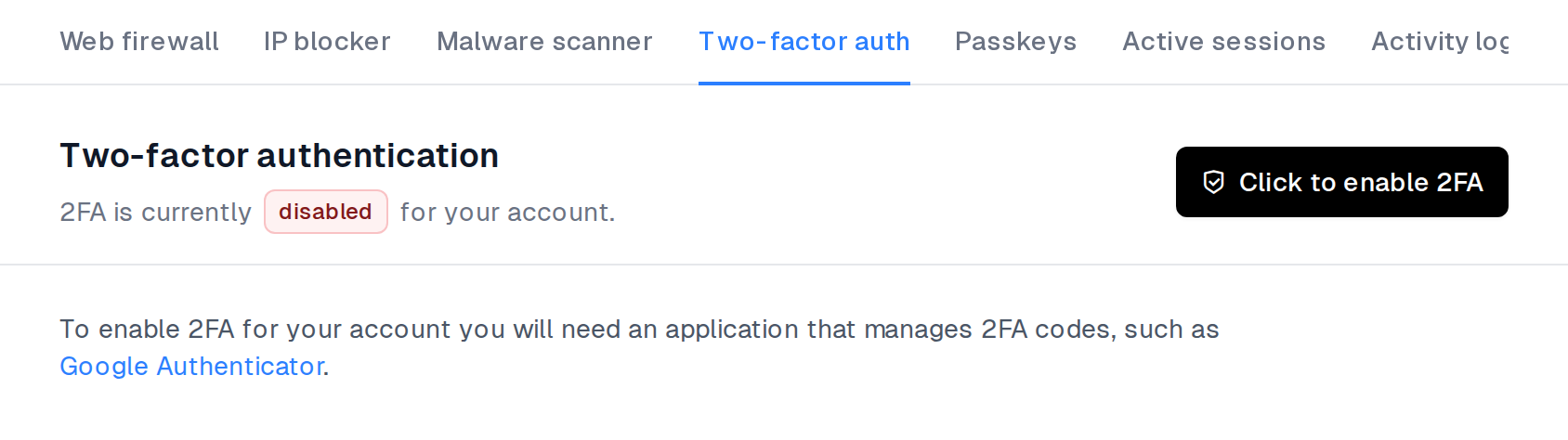
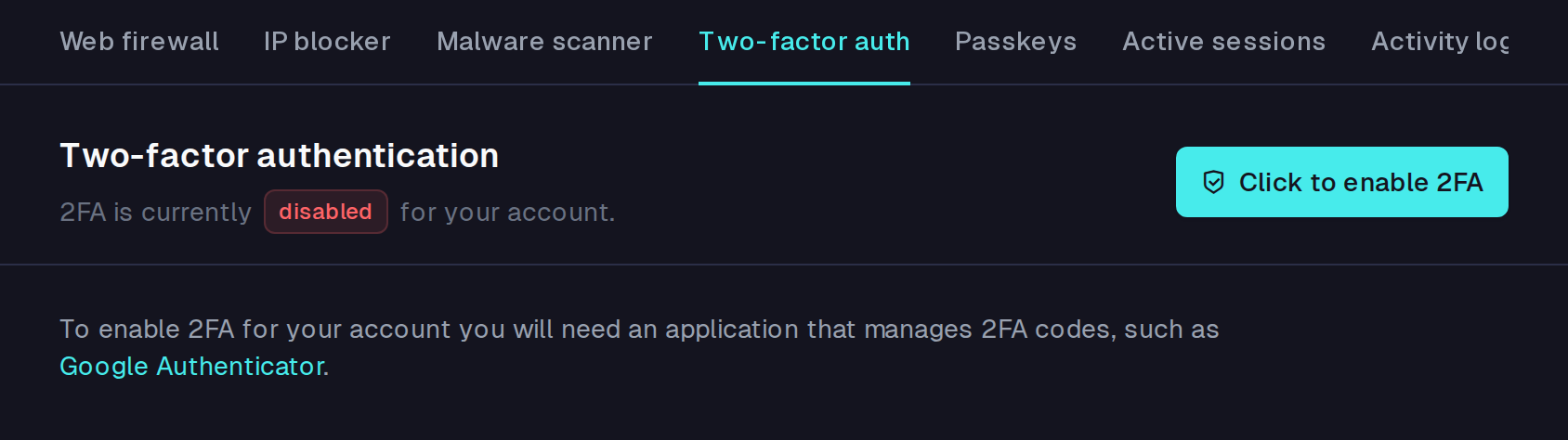
To enable 2FA for your account, click Click to enable 2FA. You will need an authenticator app on your phone, such as Google Authenticator.
- Step 1. Scan QR code: scan the QR code with your authenticator app. If you can't scan it, click Can't scan it? Show the setup key and type the key into the app instead.
- Step 2. Enter the code: enter the 6-digit code from your app, tick the checkbox to confirm the app is set up, and click Confirm.
Confirming enables 2FA and permanently deletes the setup key from the panel, so nobody who opens your account later can copy it into their own app.
While setup is in progress, you can click Cancel setup to stop and remove the pending key without enabling 2FA.
Disable 2FA
Click Click to disable 2FA and confirm in the dialog. From the next login, only your password is needed.
Was this helpful?