Web Firewall
The Web Application Firewall (WAF) checks every request to your websites and blocks attacks like SQL injection, cross-site scripting and malicious bots. You can turn it on or off for each domain, pick how strict it is, and turn on app profiles so apps like WordPress aren't blocked by mistake.
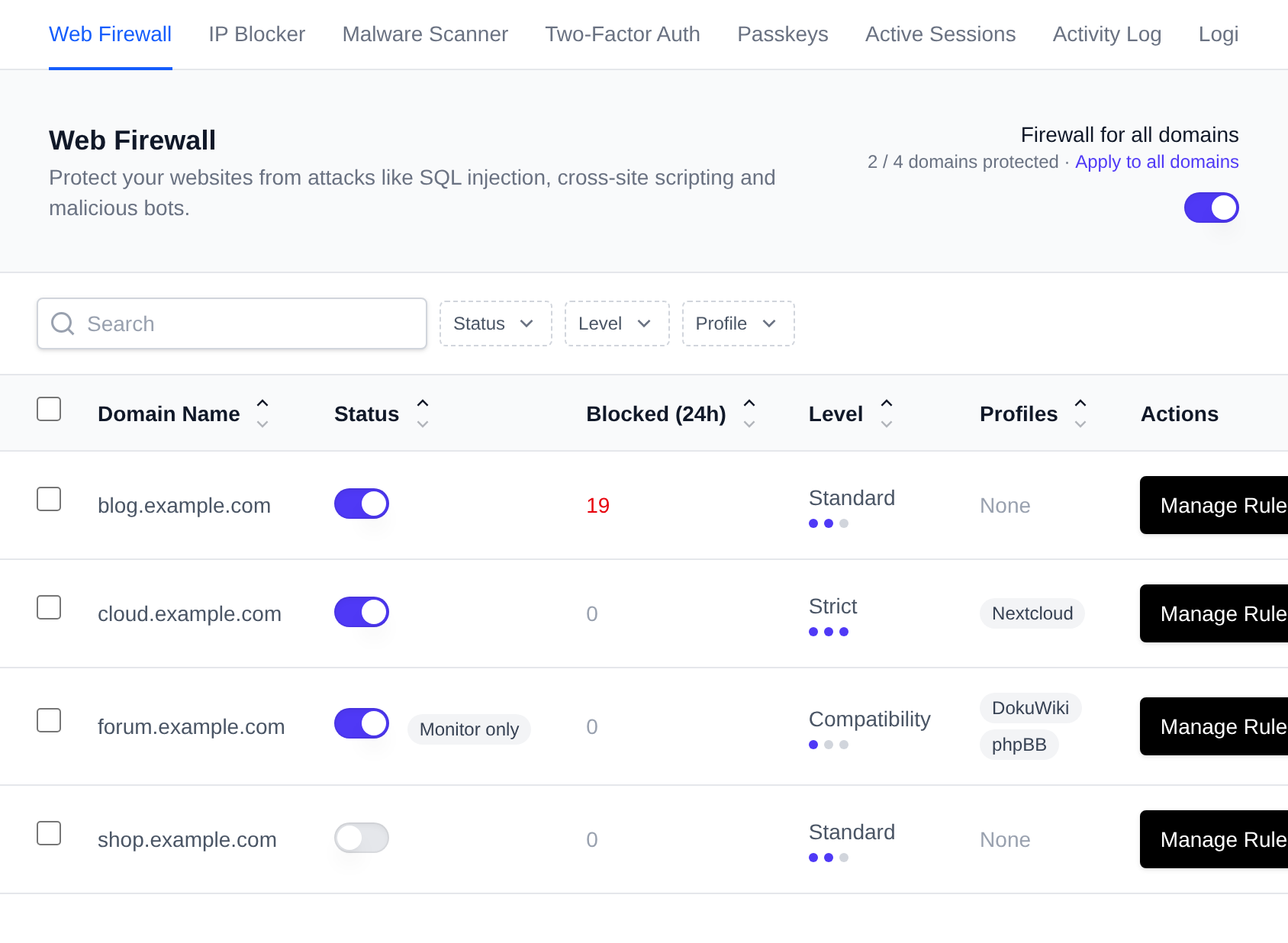
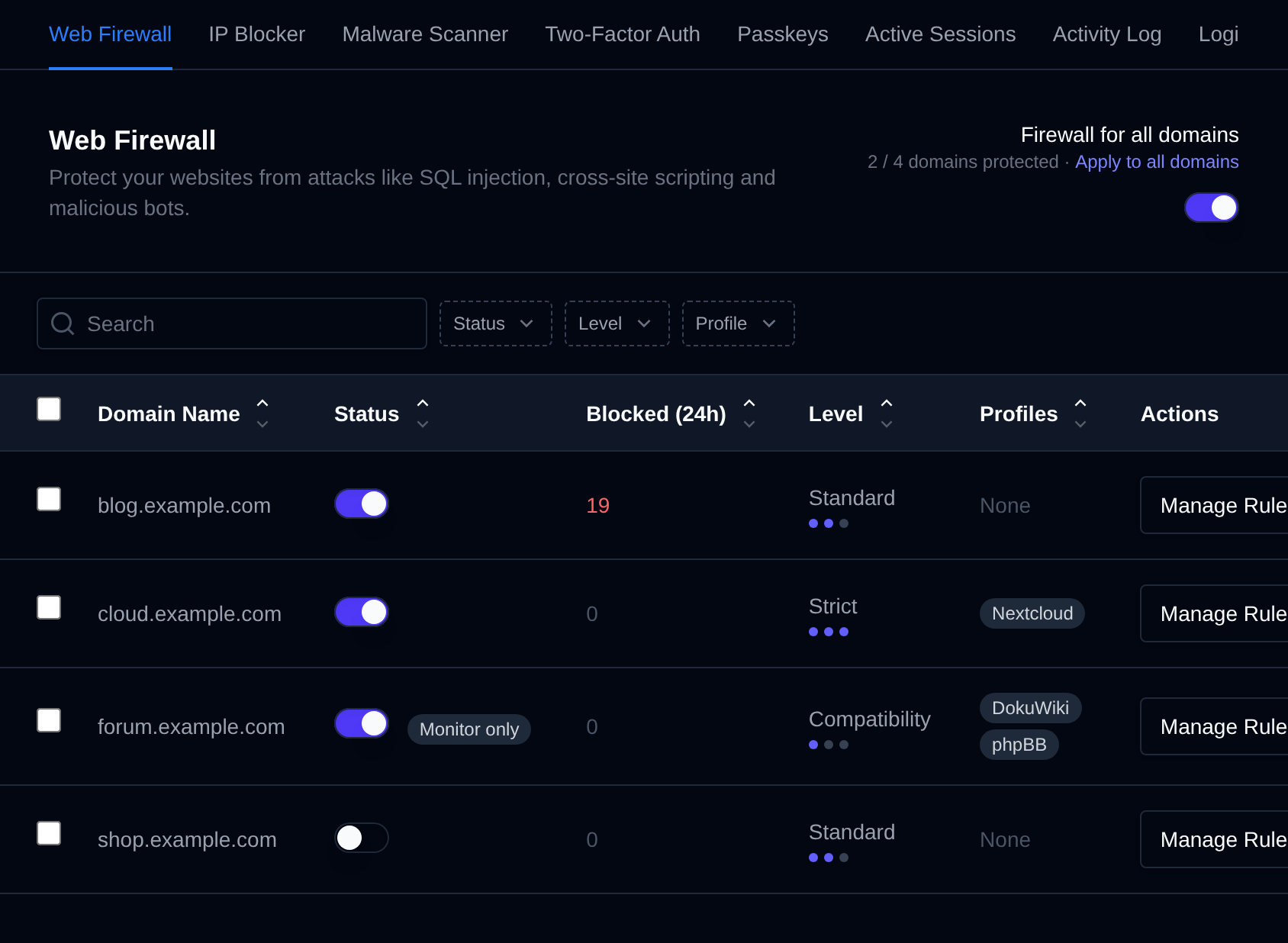
Firewall for all domains
The Firewall for all domains switch at the top of the page turns the firewall on or off for every domain at once. The choice is also saved for domains you add later, so new domains get the firewall turned on or off to match. If some domains don't match it, an Apply to all domains link appears next to the switch.
Domains table
Next to the search box you can filter the table by Status (On, Monitor only, Off), Level and Profile (or domains with no profile). Domains in monitor only mode show a Monitor only badge next to their switch.
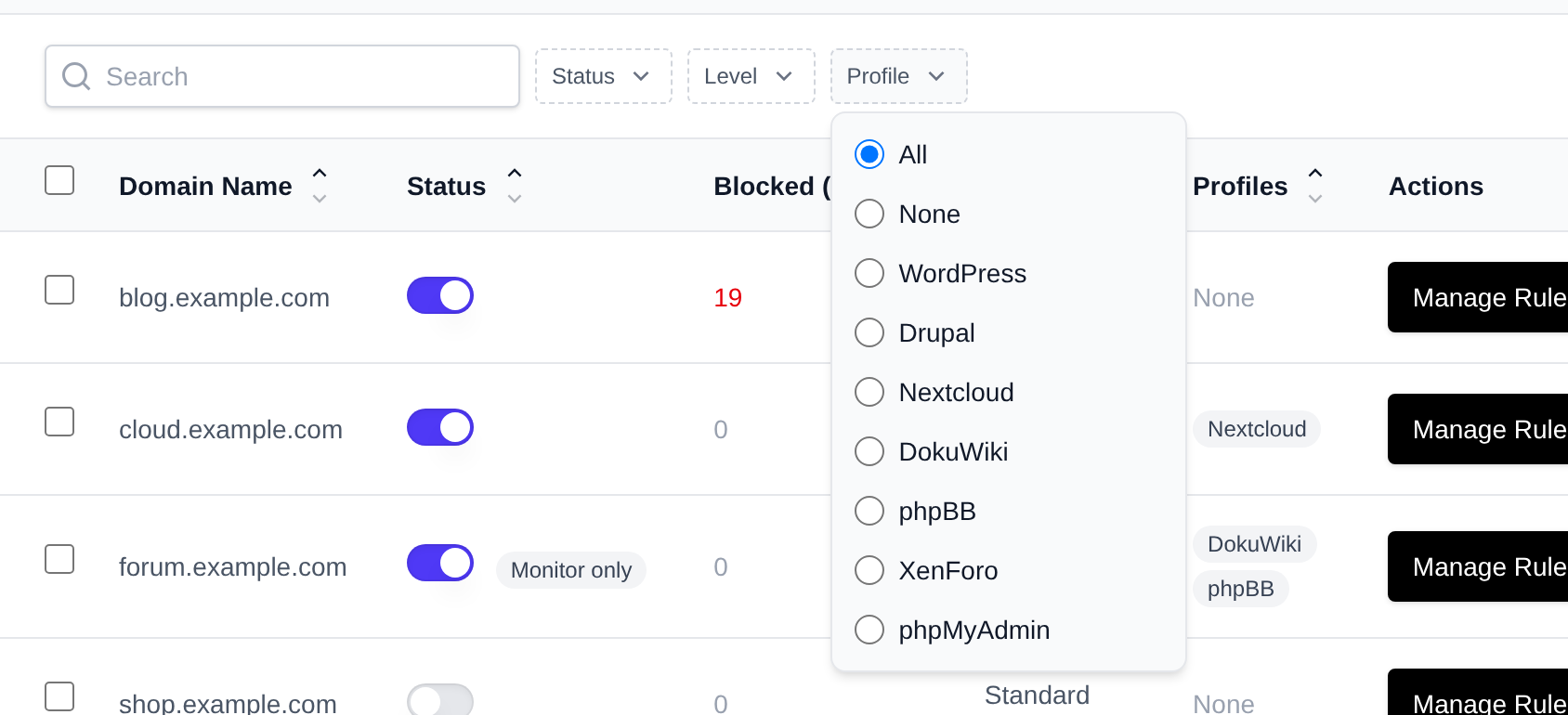
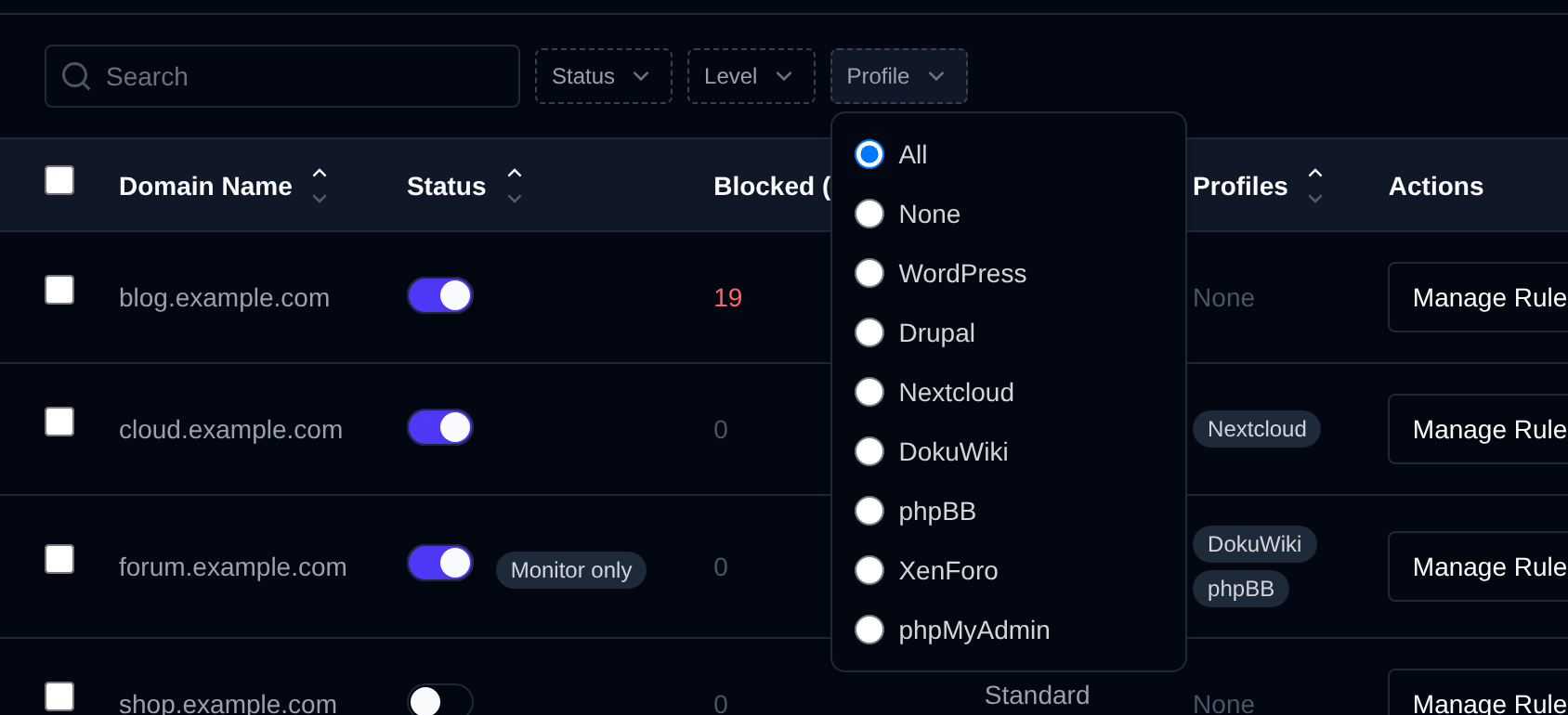
Besides the on/off switch, each row shows:
| Column | What it shows |
|---|---|
| Blocked (24h) | Requests the firewall blocked in the last 24 hours. Click the number to open the logs. |
| Level | The protection level of the domain. |
| Profiles | The app profiles turned on for the domain. |
Bulk Actions
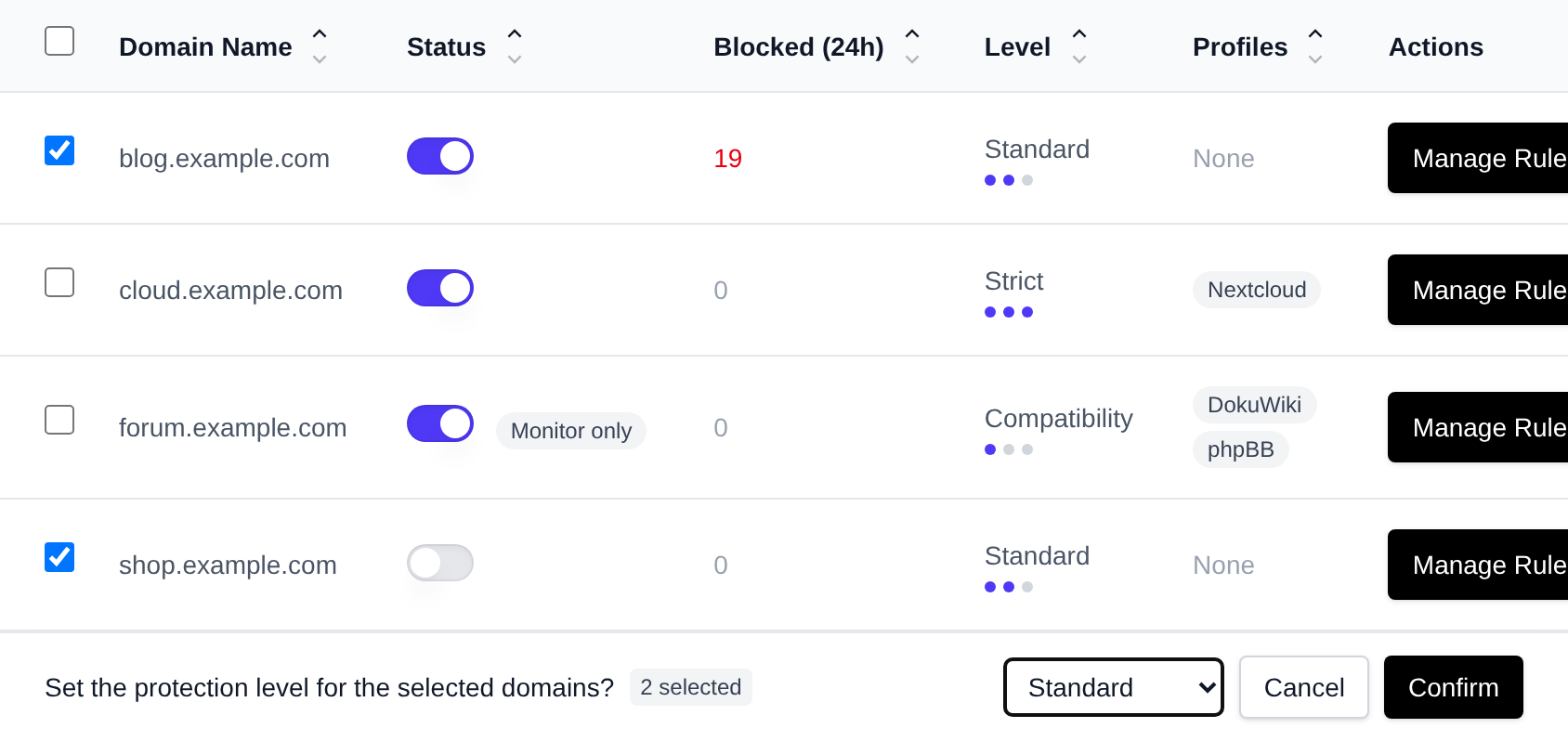
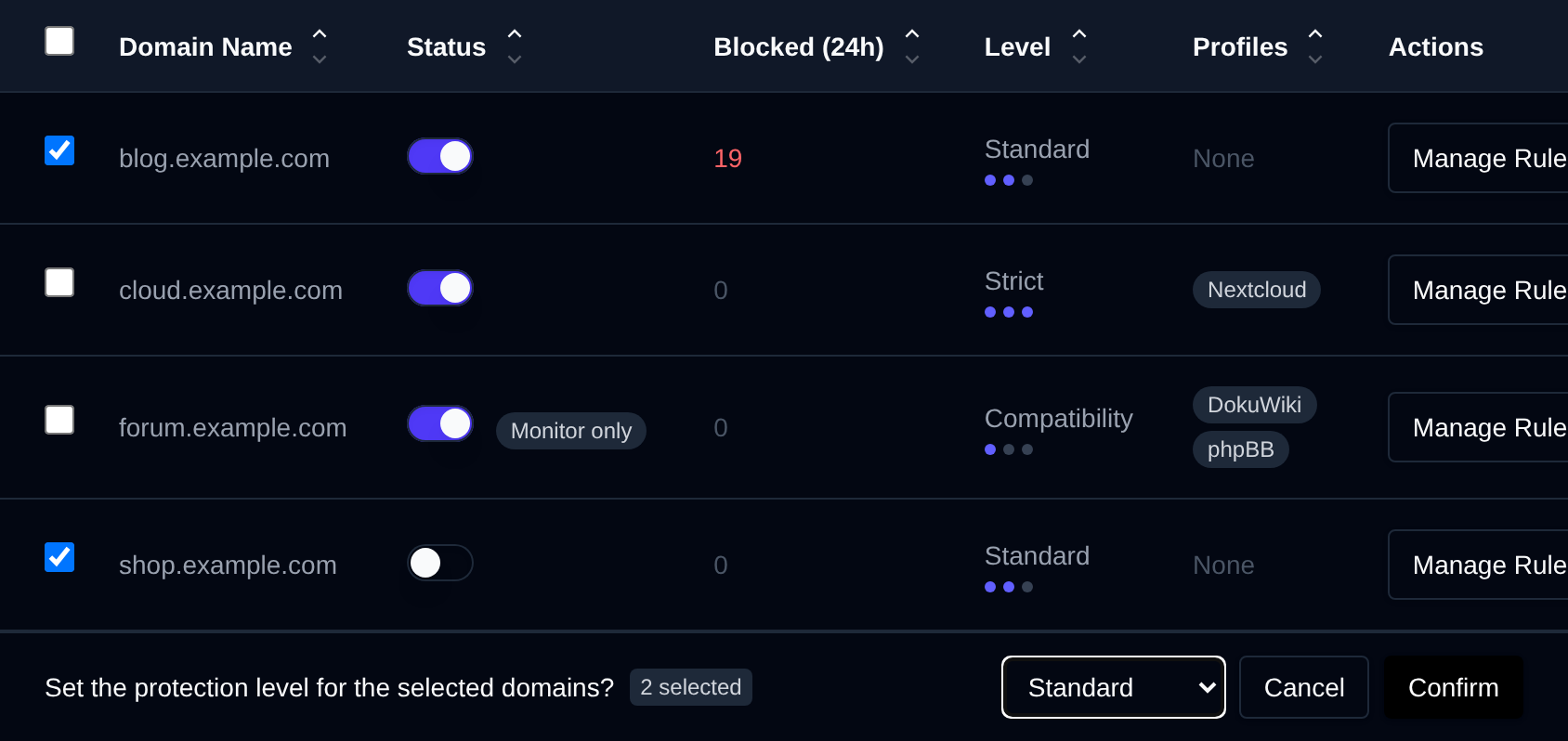
Tick the checkbox of one or more domains, or the checkbox in the table header to select every domain shown by the current search. A bar appears at the bottom of the page with the number selected, a Clear link and these actions:
| Action | What it does |
|---|---|
| Set Level | Sets the protection level (Compatibility, Standard or Strict) for the selected domains. |
| Apply Profile | Adds an app profile to the selected domains, their other profiles stay on. None removes all their profiles. |
| Enable WAF | Turns on the firewall for the selected domains. |
| Disable WAF | Turns off the firewall for the selected domains. |
Click an action, confirm it, and it runs on the selected domains one after another. When it's done the page reloads with a notice listing the domains it worked for, or which ones failed and why.
Manage domain
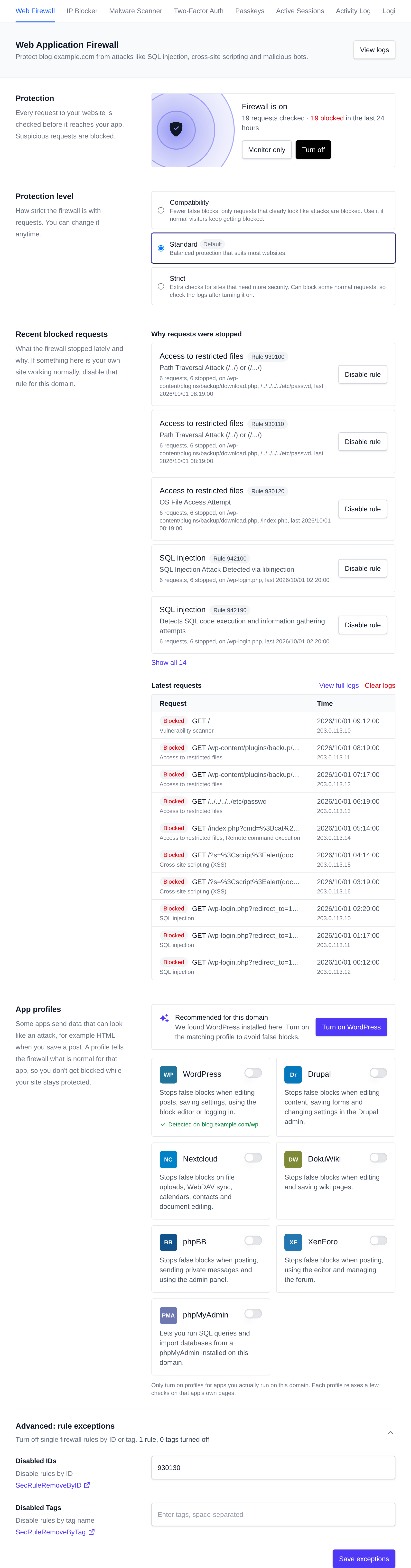
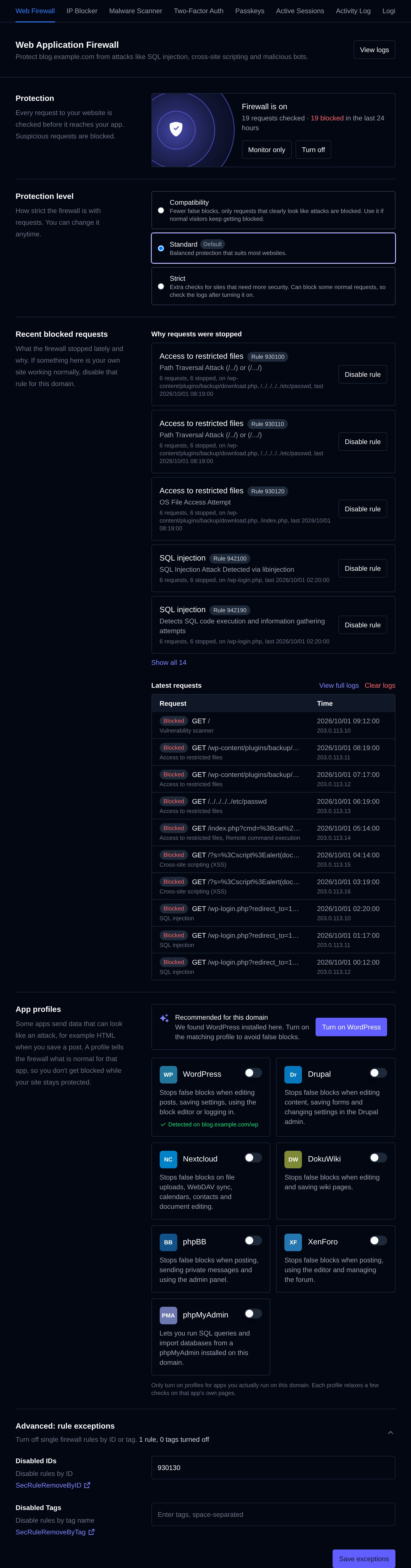
Clicking the Manage Rules button next to a domain opens the firewall page for that domain. It has five parts: protection status, protection level, recent blocked requests, app profiles and advanced rule exceptions.
Protection
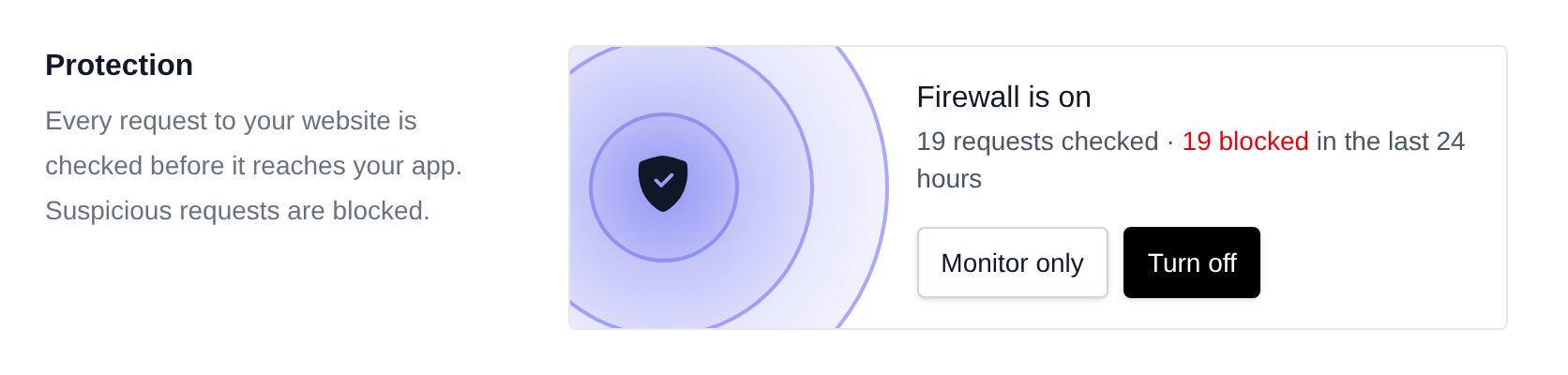
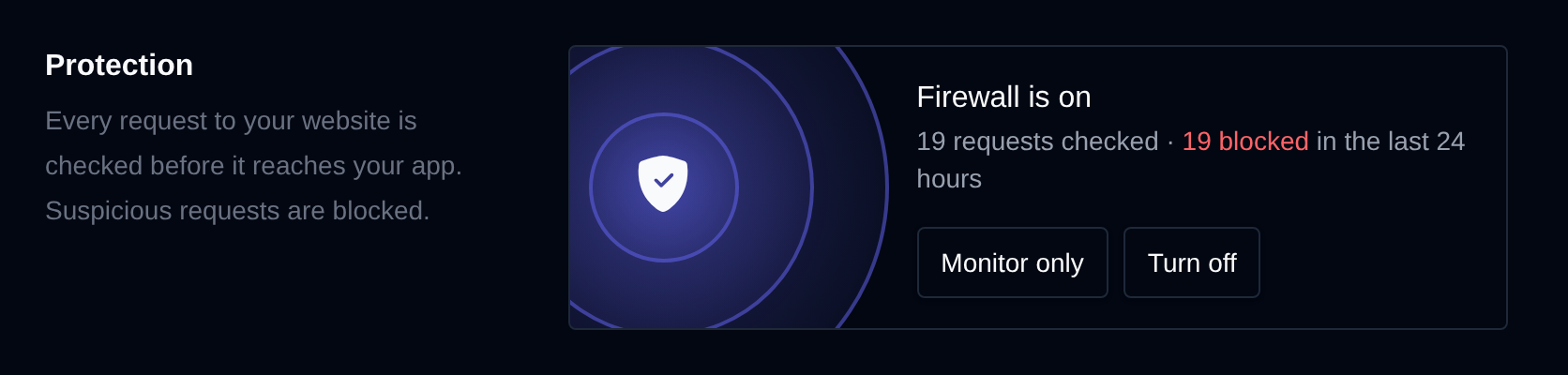
Shows whether the firewall is on for the domain and how many requests were flagged and blocked in the last 24 hours. The firewall can be in one of three modes:
| Mode | What happens |
|---|---|
| On | Suspicious requests are blocked. |
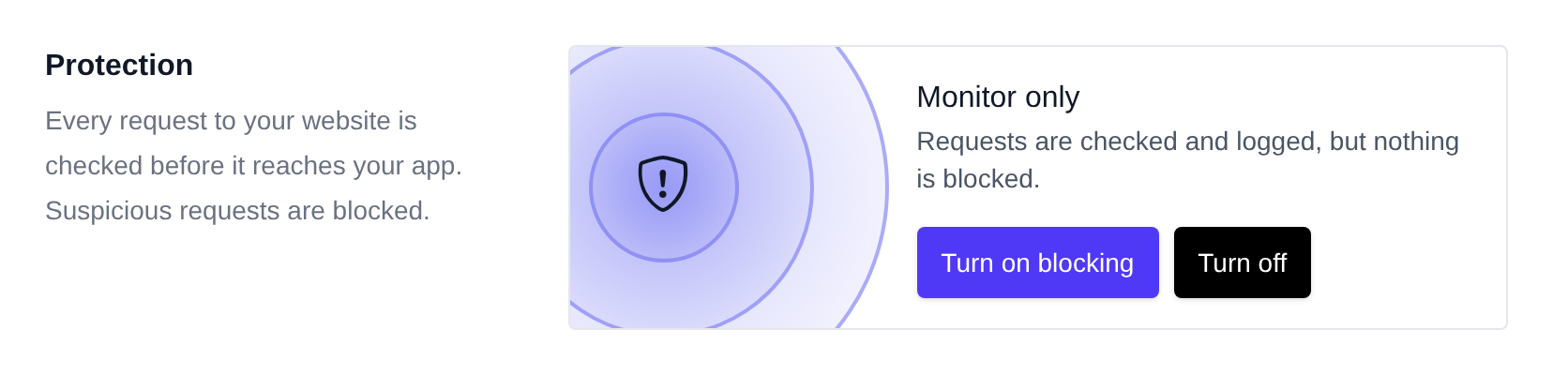
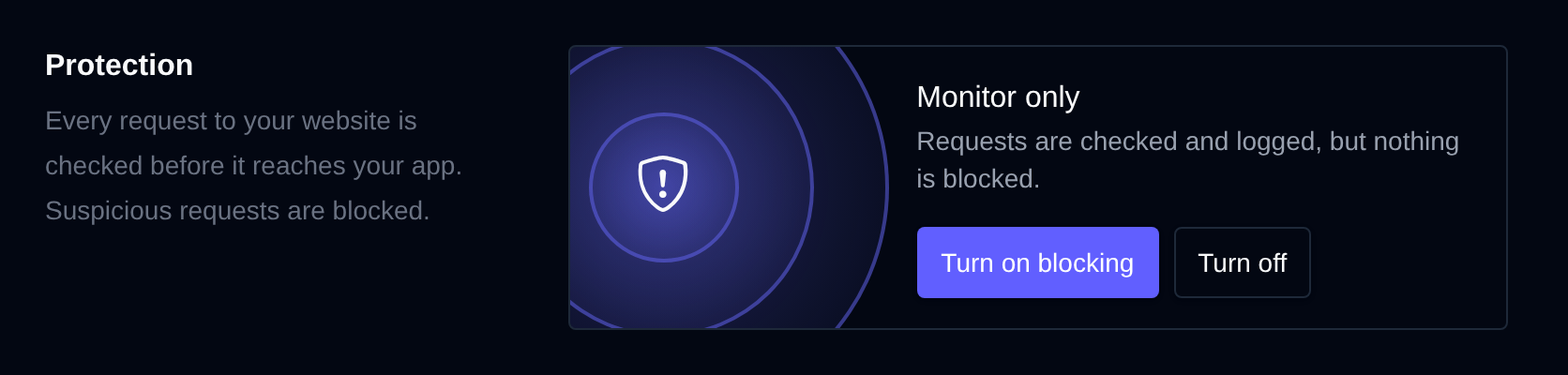
| Monitor only | Requests are checked and logged, but nothing is blocked. Use it to try the firewall, or a stricter level, on a live site: check the logs for a few days, then click Turn on blocking. |
| Off | Requests are not checked. |
In monitor only mode the card says so, with buttons to turn blocking on or the firewall off:
Protection level
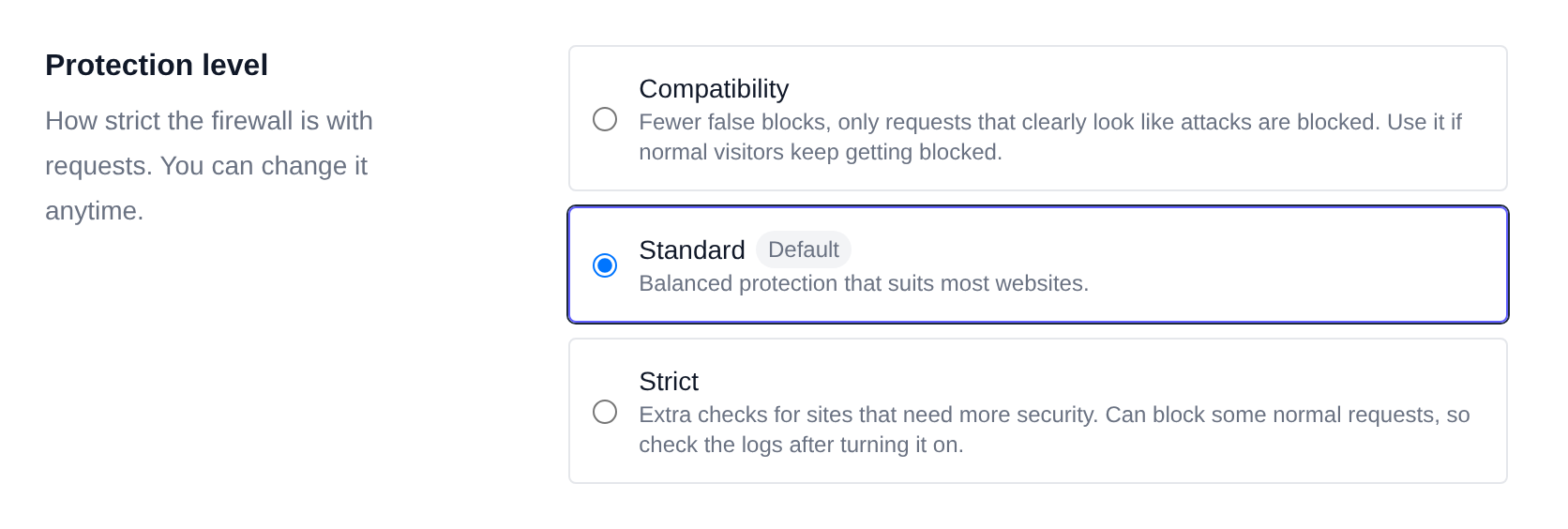
How strict the firewall is with requests:
| Level | When to use it |
|---|---|
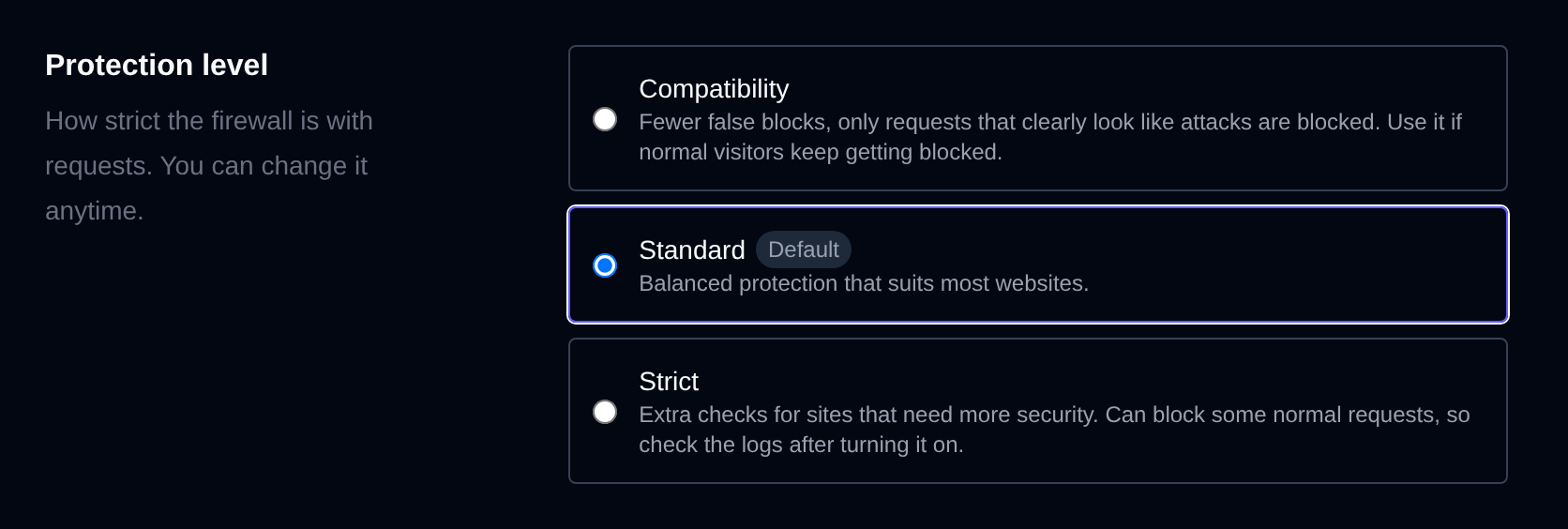
| Compatibility | Fewer false blocks, only requests that clearly look like attacks are blocked. Use it if normal visitors keep getting blocked. |
| Standard (default) | Balanced protection that suits most websites. |
| Strict | Extra checks for sites that need more security. Can block some normal requests, so check the logs after turning it on. |
The change applies immediately. Behind the scenes Compatibility raises the OWASP CRS anomaly score threshold to 10, and Strict sets the paranoia level to 2.
Recent blocked requests
Explains the newest entries of the domain's firewall log in plain words:
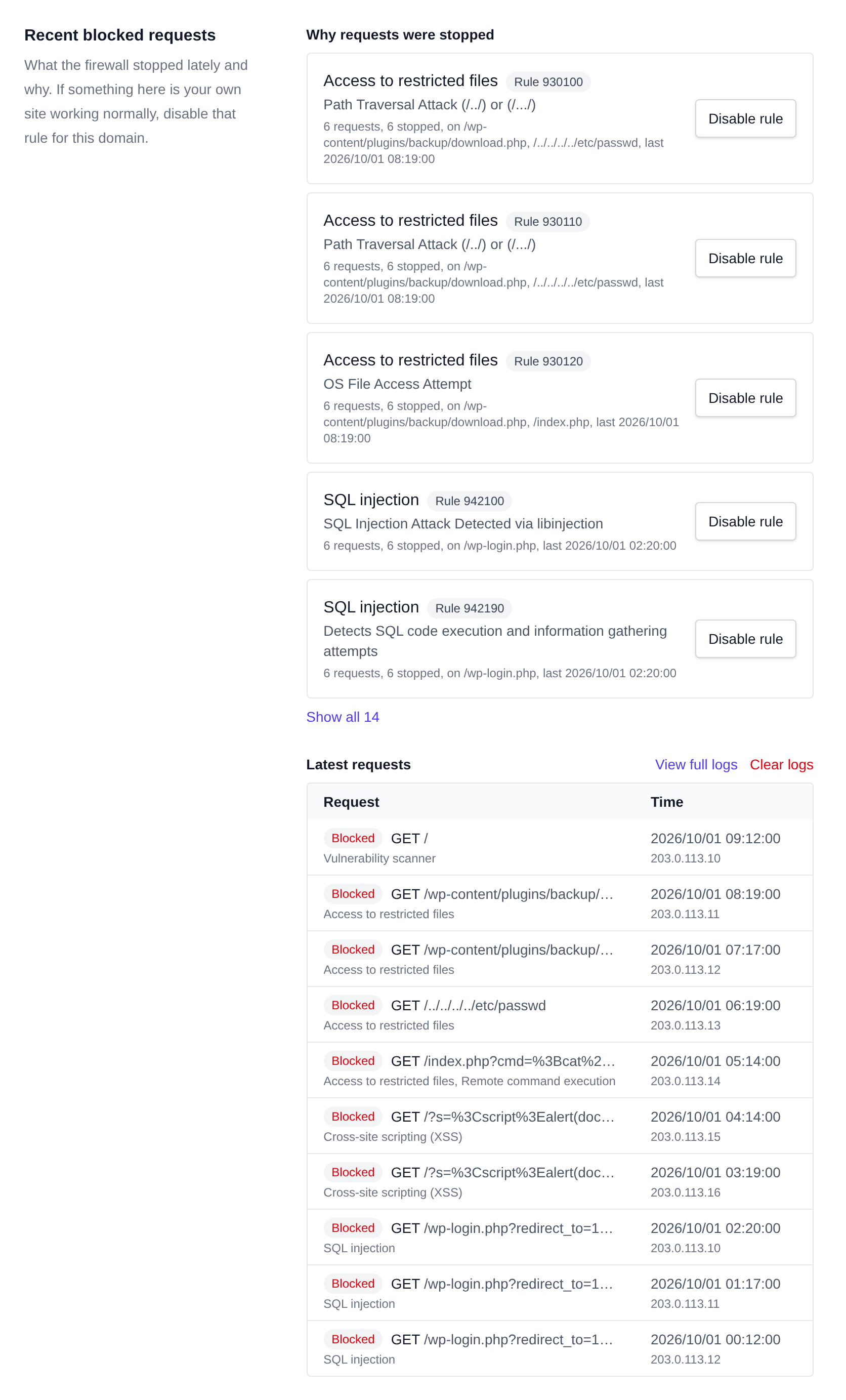
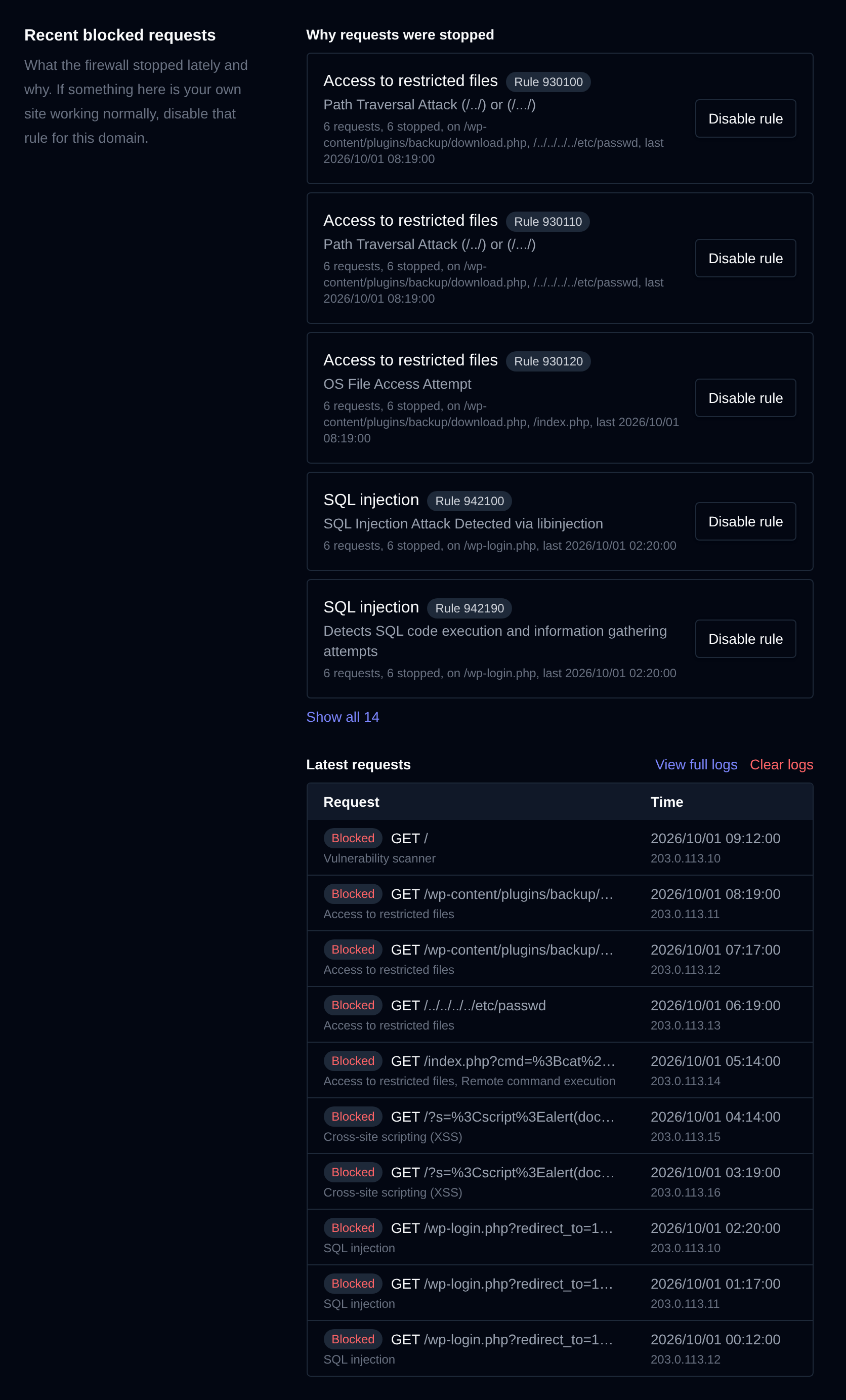
- Why requests were stopped: every rule that matched, with what kind of attack it looks for (for example SQL injection or Access to restricted files), how many requests it caught, on which pages, and when it last fired. If a rule is catching your own site working normally, click Disable rule to turn it off for this domain. The confirmation has an Undo button, and a disabled rule can be turned back on with Enable again.
- Latest requests: the last 10 requests the firewall stopped or flagged, with the result (Blocked, Would be blocked in monitor only mode, or Flagged), the request, the reason, the time and the visitor IP.
View full logs opens the complete log. Clear logs empties the domain's firewall log right away, new requests are logged again from that moment.
App profiles
Some apps send data that looks like an attack, for example HTML when you save a WordPress post, so the firewall can block normal use of the app. A profile tells the firewall what is normal for that app while the rest of the site stays protected.
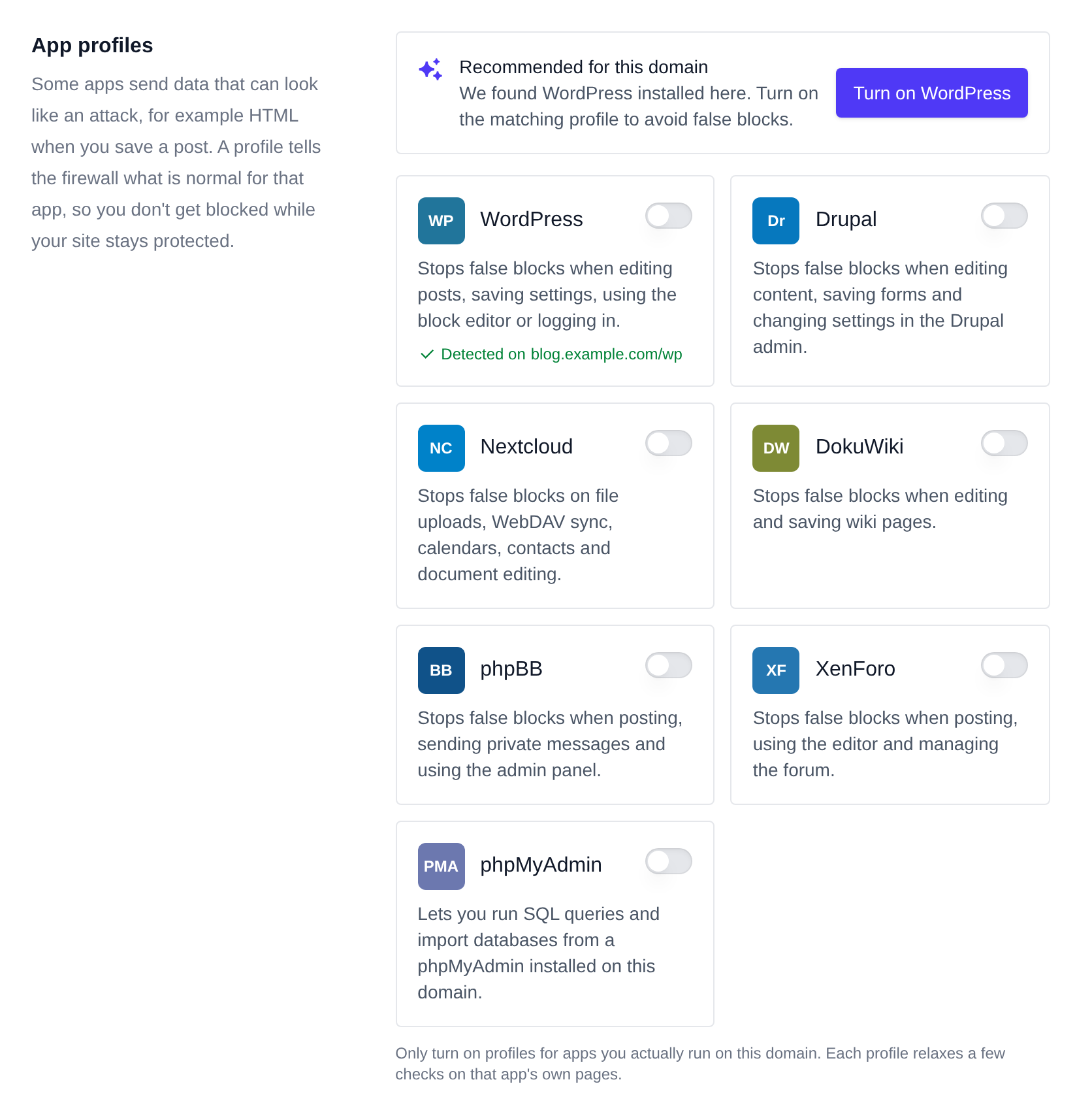
Available profiles: WordPress, Drupal, Nextcloud, DokuWiki, phpBB, XenForo and phpMyAdmin. Each one is an official OWASP CRS rule exclusion plugin.
OpenPanel checks which apps are installed on the domain (including subfolders) and recommends the matching profile, for example the WordPress profile when WordPress is installed. Click Turn on in the recommendation, or use the switch on any profile card. Changes apply immediately, and the confirmation has an Undo button. Changing the protection level can be undone the same way.
When you install WordPress, Drupal, Nextcloud, phpBB or DokuWiki from OpenPanel (or import an existing install with Scan on the Sites page), its profile is turned on for the domain automatically, as long as the firewall is available on your plan.
Only turn on profiles for apps you actually run on the domain. Each profile relaxes a few checks on that app's own pages.
Advanced: rule exceptions
If a request is still blocked by mistake, the easiest fix is Disable rule in Recent blocked requests.
Rules can also be disabled manually by ID, in the Disabled IDs field (SecRuleRemoveById):


Or by tag name, in the Disabled Tags field (SecRuleRemoveByTag):


Click Save exceptions to apply them.
The OWASP Core Rule Set is enabled by default for all newly added domains.
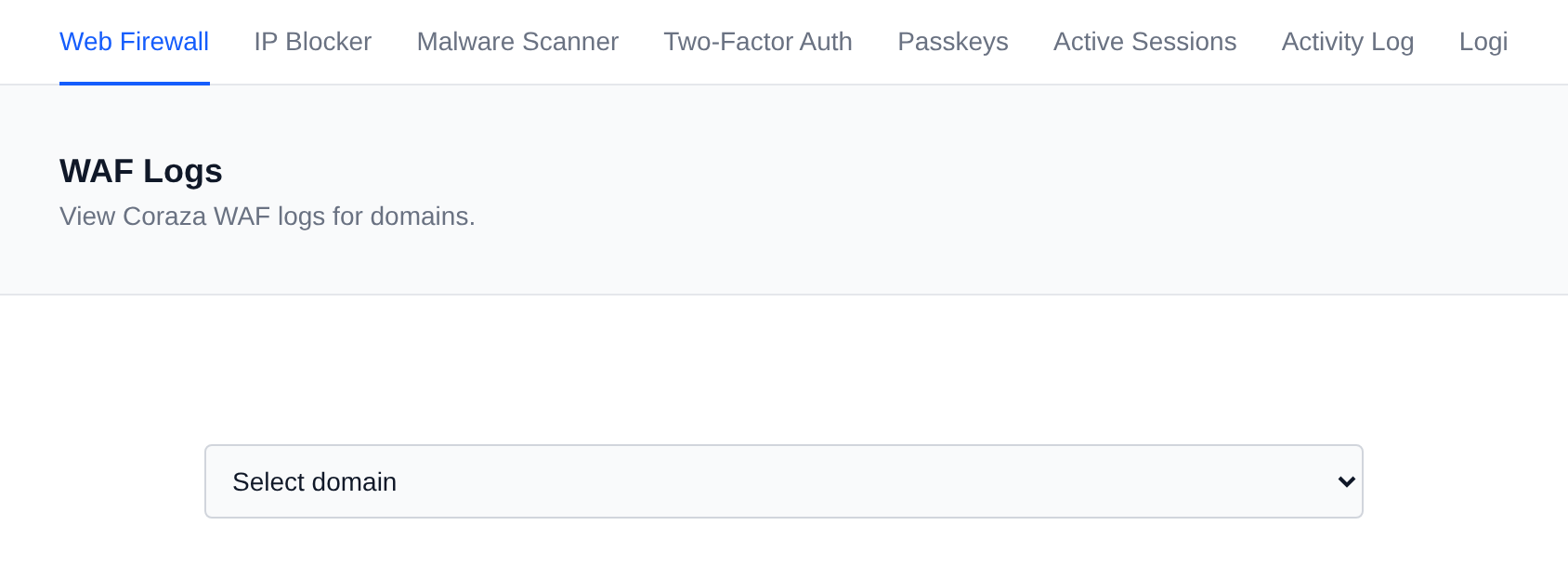
WAF Logs
WAF logs can be viewed by clicking the View Logs button for domain.
Reading the Logs
Coraza logs all checked requests, not just blocked ones. The key columns are:
is_interrupted: whether the request was blocked. true means blocked.
messages.rule_ids: the IDs of rules that fired, for example:
932370, 941100, 941160, 949110, 980170
These are the IDs you can paste into the Disabled IDs field for that domain.
messages.tags — the tags associated with triggered rules, for example:
application-multi, language-shell, platform-windows, attack-rce, paranoia-level/1, OWASP_CRS, OWASP_CRS/ATTACK-RCE, capec/1000/152/248/88
When disabling by tag, use the attack category tags such as attack-rce or attack-xss. Avoid broad tags like OWASP_CRS or paranoia-level/1 as they would disable large portions of the ruleset.
Disabling rules by tag removes them globally for the entire domain. For false positives on specific pages (e.g. /wp-admin), disabling by ID is the safer approach as it can be scoped more precisely.
messages.msg — the human-readable reason the rule fired, for example:
Remote Command Execution: Windows Command Injection