Switch Web Server
The Web Server Config > Web Server Type page lets you choose which web server runs your websites: Apache, Nginx, OpenLiteSpeed, LiteSpeed or OpenResty.
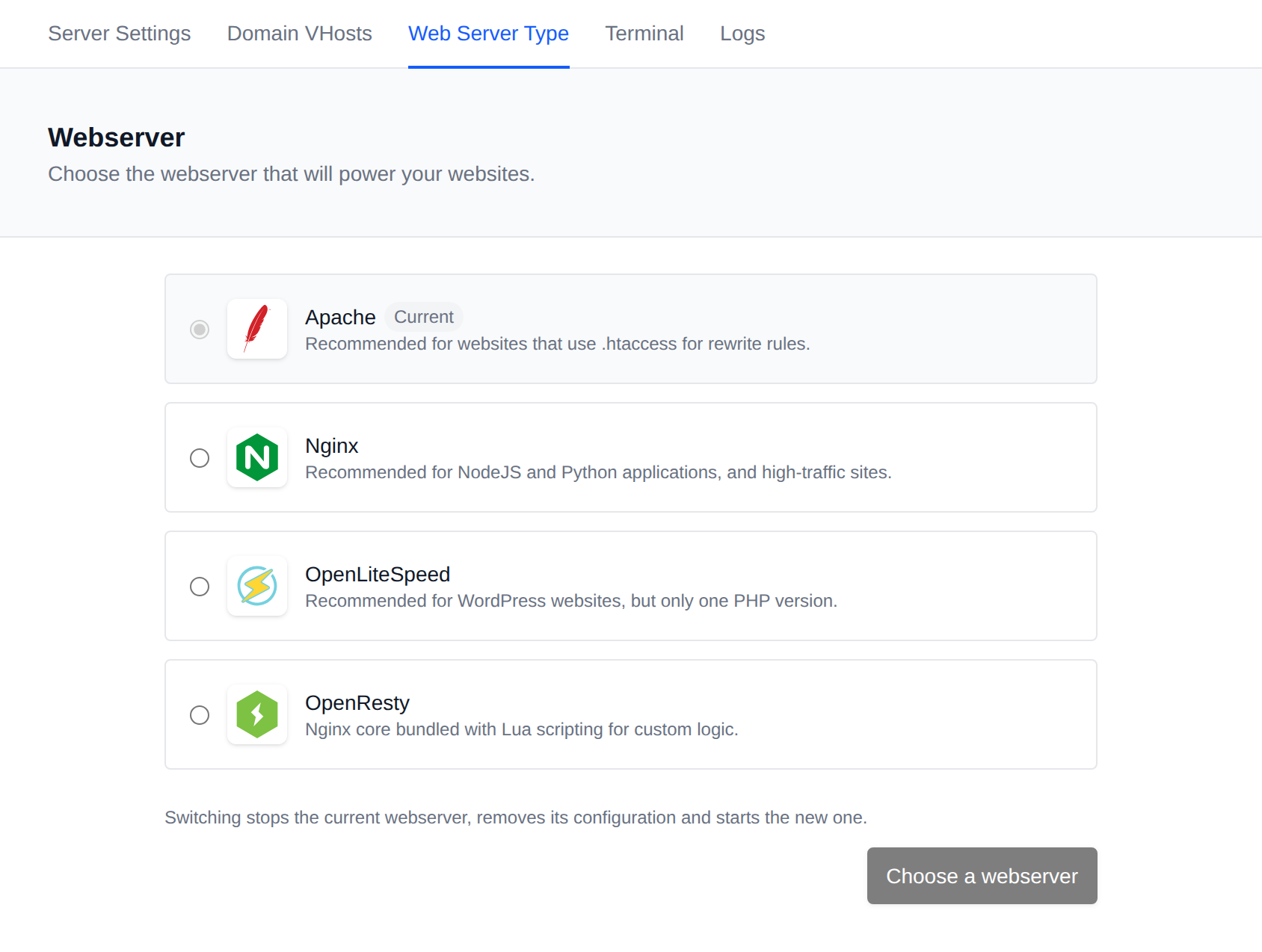
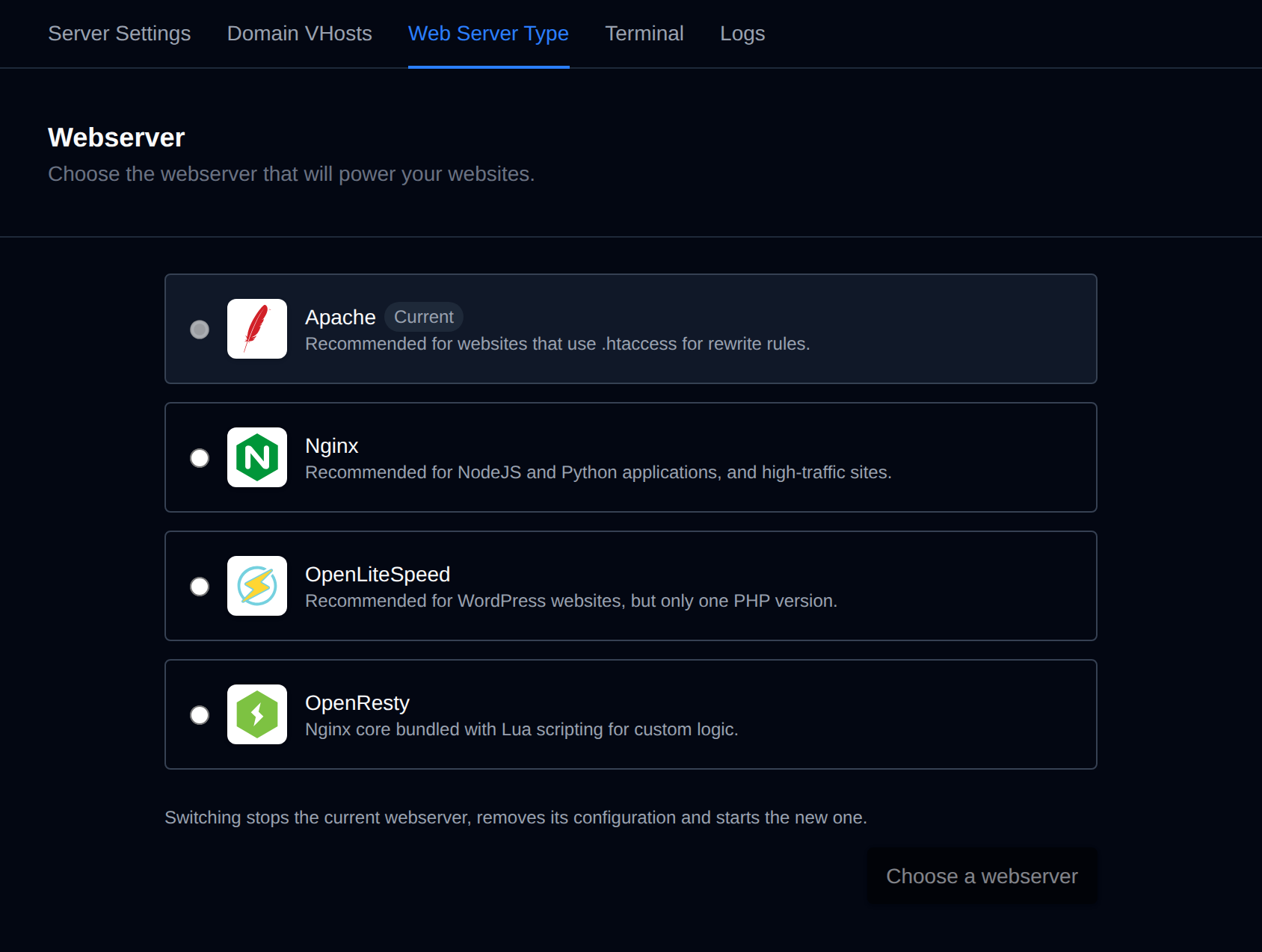
Each web server is shown as a card with a short description of what it's best for:
| Web server | Best for |
|---|---|
| Apache | Websites that use .htaccess for rewrite rules. |
| Nginx | NodeJS and Python applications, and high-traffic sites. |
| OpenLiteSpeed | WordPress websites, but only one PHP version. |
| OpenResty | Nginx core bundled with Lua scripting for custom logic. |
| LiteSpeed | LiteSpeed Enterprise with .htaccess support, starts on a trial and takes your license key any time. |
The web server you're using now is marked Current. Only web servers defined in your account's docker-compose.yml are listed, so your hosting provider may offer fewer than the five above.
LiteSpeed
LiteSpeed is LiteSpeed Enterprise. It reads Apache style configuration and .htaccess files, runs PHP in its own LSPHP and has LSCache with the crawler turned on, so the LiteSpeed Cache plugin works out of the box.
It needs a license: after switching, it starts on a 15-day trial license. Add your serial number any time on the WebServer Settings page. LiteSpeed gives one trial per server IP, so once the trial on this server has expired LiteSpeed only starts with a serial number.
The PHP version comes with the LiteSpeed image, so all your domains run the same PHP version. Change it on the PHP page, the image tag is updated for you.
Requirements
- Your hosting plan must include the Switch WebServer (
change_ws) feature. - All domains must be removed from your account before switching. While you have domains, the page shows how many there are with a link to the Domains page, and the web servers can't be selected.
To avoid downtime, choose the web server before adding any domains. If you already have domains, back up their configuration first, remove them, switch, and then add them again.
Steps to Switch
- In the OpenPanel menu, navigate to Web Server Config > Web Server Type.
- Click the card of the web server you want to use.
- Click Switch to <web server>.
Switching stops the current web server, removes its configuration and starts the new one. You can then add your domains again.
You can also choose the web server in the onboarding wizard when you first log in.