Git
Deploy websites from Git repositories. Clone a repository from GitHub, GitLab, Bitbucket or any other Git server, or create a repository on the server and push to it from your computer. OpenPanel checks out the selected branch into a folder of your website on every deploy.
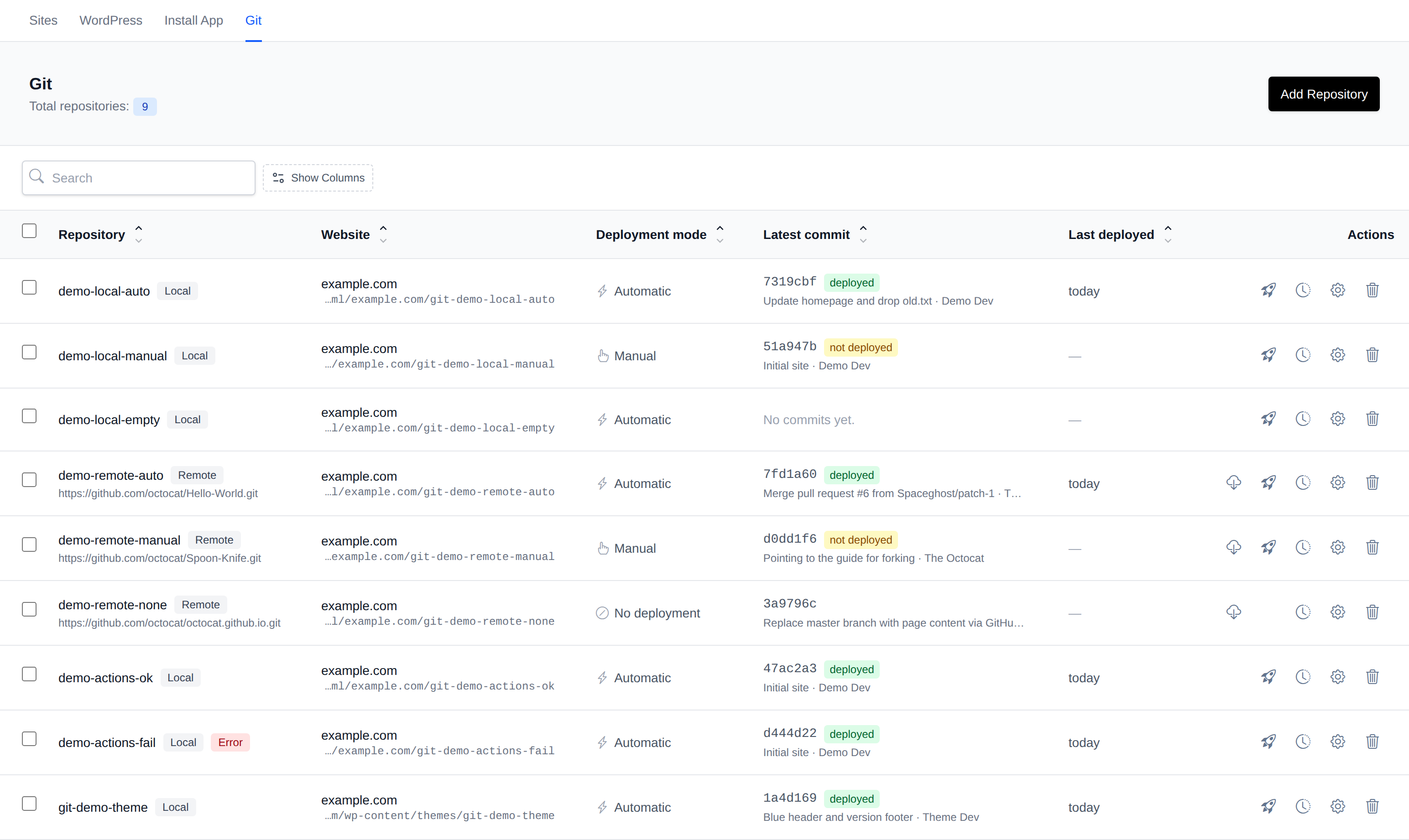
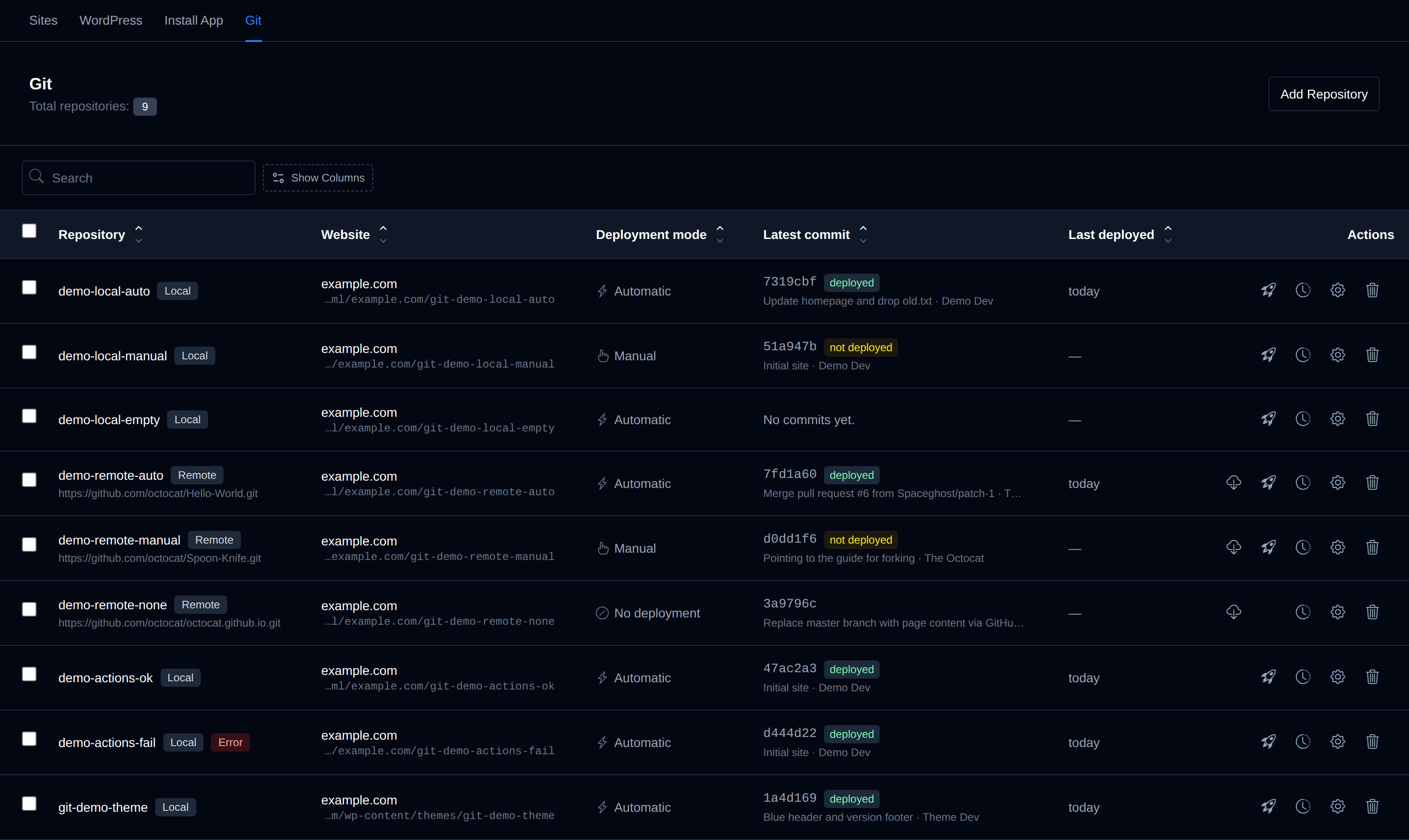
Go to OpenPanel > Websites > Git to manage all repositories of your account. The same repositories are also listed on the Git tab of each website in the Site Manager.
The Git page is available only when your hosting provider has enabled the Git module for your plan.
How it works
Every repository is stored on the server outside of your websites, so the .git folder never ends up in a public directory. When a repository is deployed, OpenPanel:
- checks out the latest commit of the selected branch into the deploy directory,
- removes files that were deleted from the repository since the previous deploy,
- leaves files that were never part of the repository alone, for example WordPress uploads or a
.envfile, - sets the owner of the deployed files to your account,
- runs the deploy actions, if any are set.
Add a repository
Click Add Repository and choose where the repository comes from.
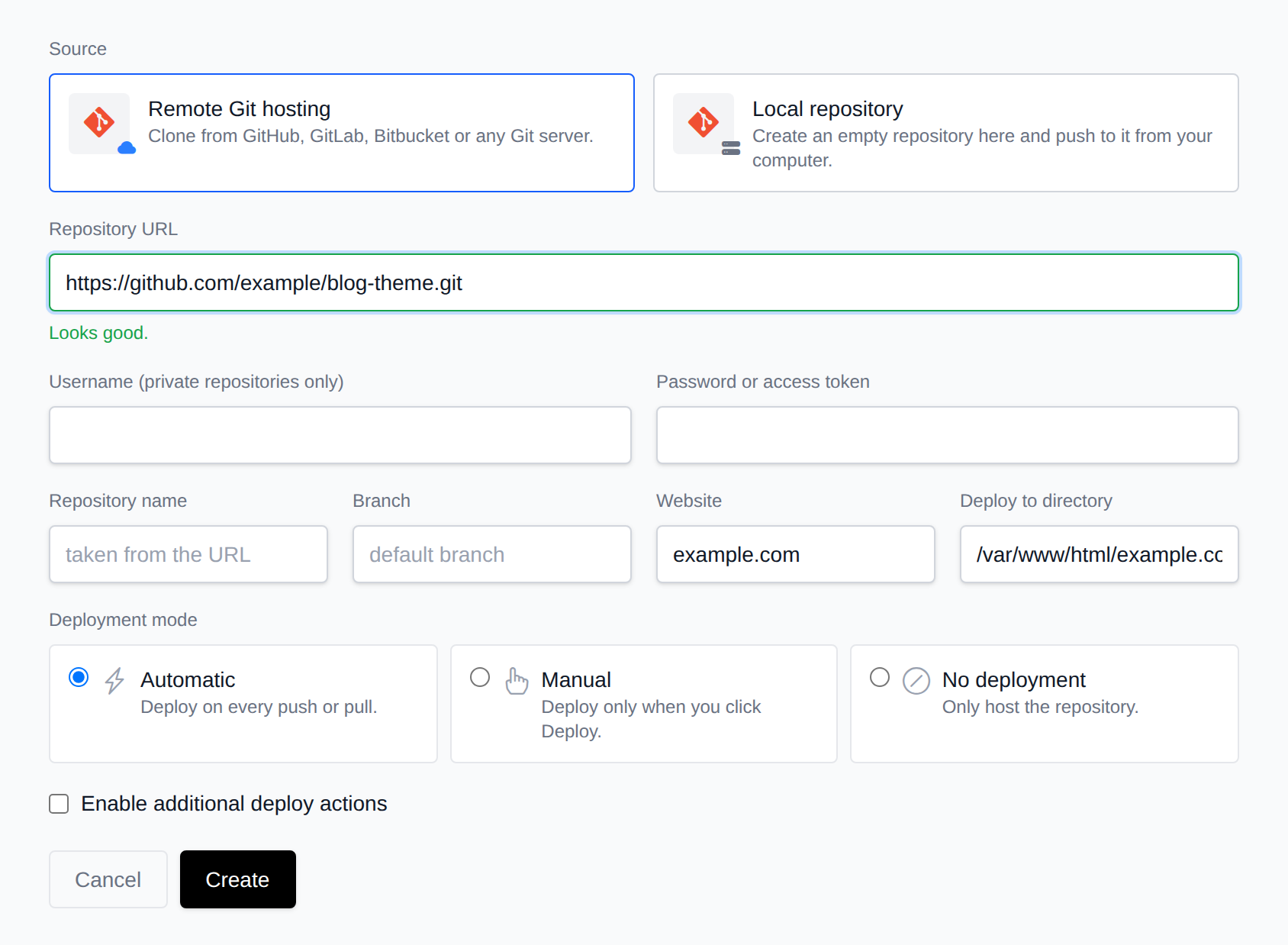
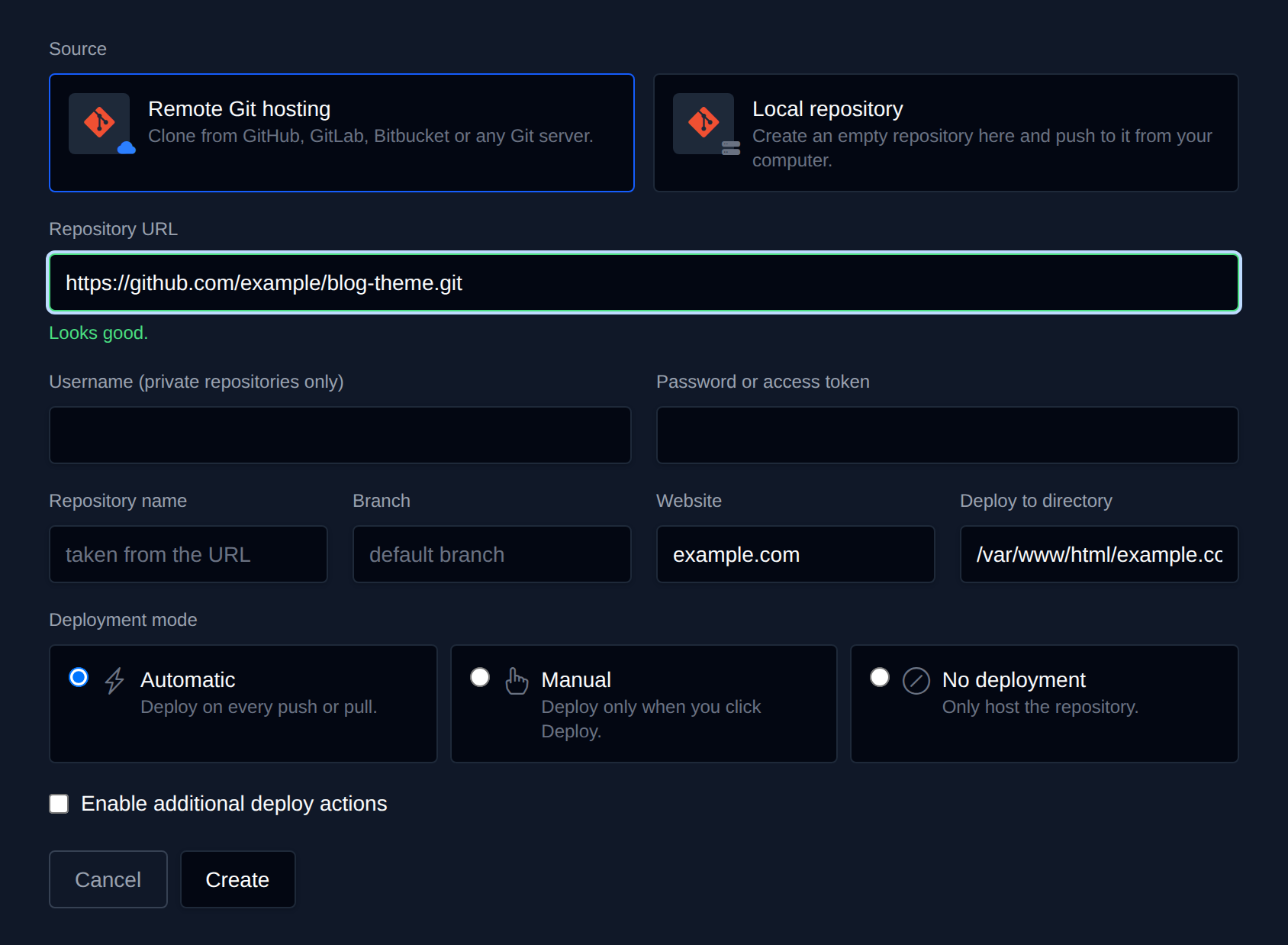
| Field | Description |
|---|---|
| Source | Remote Git hosting clones an existing repository. Local repository creates an empty repository on the server that you push to. |
| Repository URL | Remote only. An https:// URL, or an SSH URL like [email protected]:user/repo.git. |
| Username / Password or access token | Remote HTTPS repositories only, and only for private ones. Use a personal access token instead of your account password. |
| Repository name | Optional. Taken from the URL for remote repositories, or from the domain name for local ones. |
| Branch | The branch that gets deployed. Remote repositories use their default branch when this is empty, local ones use main. |
| Website | The domain the repository deploys to. |
| Deploy to directory | The folder the files are checked out into. Defaults to the domain's document root and can be any folder under /var/www/html/, for example /var/www/html/example.com/wp-content/themes/my-theme. |
| Deployment mode | See Deployment modes. |
| Enable additional deploy actions | See Deploy actions. |
Click Create. A remote repository is cloned right away and, in automatic mode, deployed. A local repository starts empty and shows its push credentials once.
Private repositories over SSH
When you enter an SSH URL, the form shows the SSH public key of your account. Add it to the repository as a deploy key (read-only access is enough) on GitHub, GitLab or Bitbucket before you click Create. The same key is used for all SSH repositories of your account.
Pushing to a local repository
A local repository is reached over HTTPS through the panel. After you create it, OpenPanel shows the Username (your panel username), a Password for this repository and the Clone URL. Copy the password right away, it is not shown again.
git remote add origin https://OPENPANEL_URL:2083/git-http/USERNAME/REPOSITORY.git
git push -u origin main
Git asks for the username and password on the first push. To get a new password, open the repository's Settings and click New push password, then click it again to confirm. The old password stops working right away.
Deployment modes
| Mode | What happens |
|---|---|
| Automatic | Every push to a local repository and every pull of a remote repository is deployed right away. |
| Manual | Pushes and pulls only update the repository. Nothing reaches the website until you click Deploy. |
| No deployment | The repository is only stored on the server, there is no Deploy button. |
The table shows a deployed badge next to the latest commit when it is live, and not deployed when the repository has newer commits than the website.
Deploy actions
Deploy actions are shell commands that run after every deploy, for example to install dependencies, run database migrations or clear a cache. Enable Enable additional deploy actions, pick the container to Run in (like for cron jobs) and enter one command per line. The commands start in the deploy directory.
composer install --no-dev --optimize-autoloader
php artisan migrate --force
The output of the last deploy is shown in the repository's Settings. If a command fails, the files stay deployed and the repository gets an Error badge.
Webhooks
Every remote repository has a Webhook URL in its Settings. Add it as a push webhook in GitHub, GitLab or Bitbucket, and OpenPanel pulls the repository every time you push there. In automatic mode the changes are also deployed.
Manage repositories
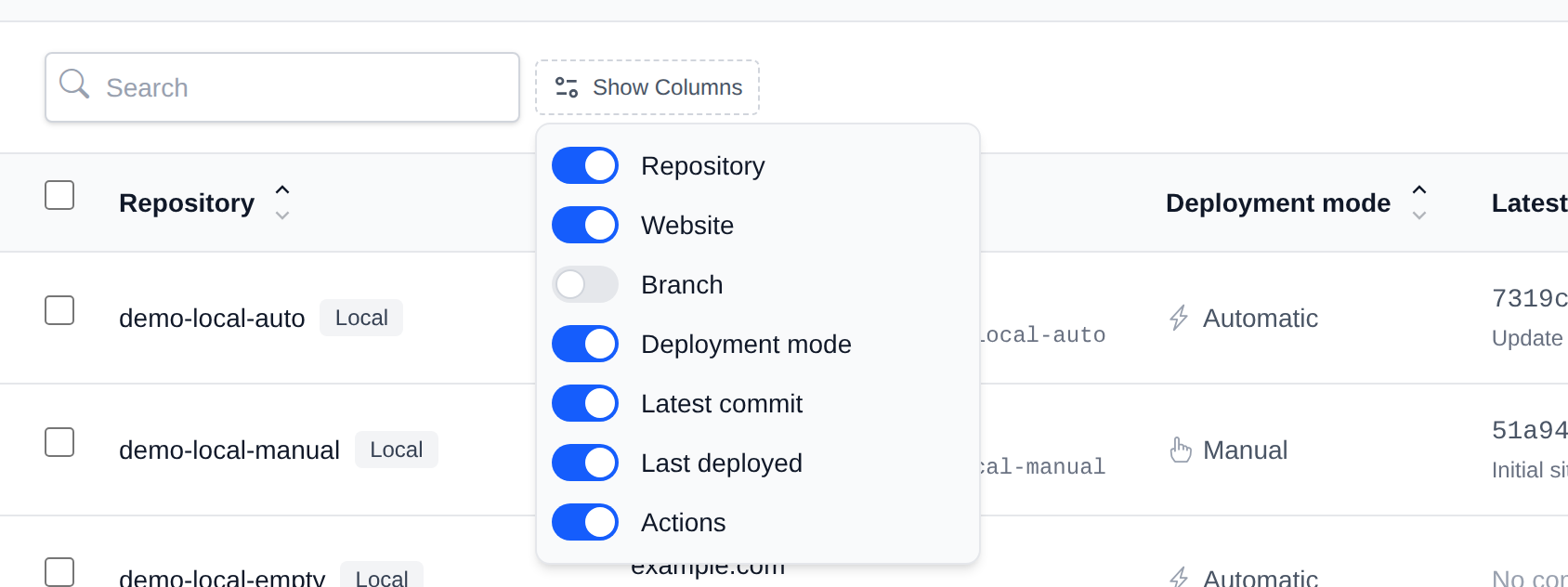
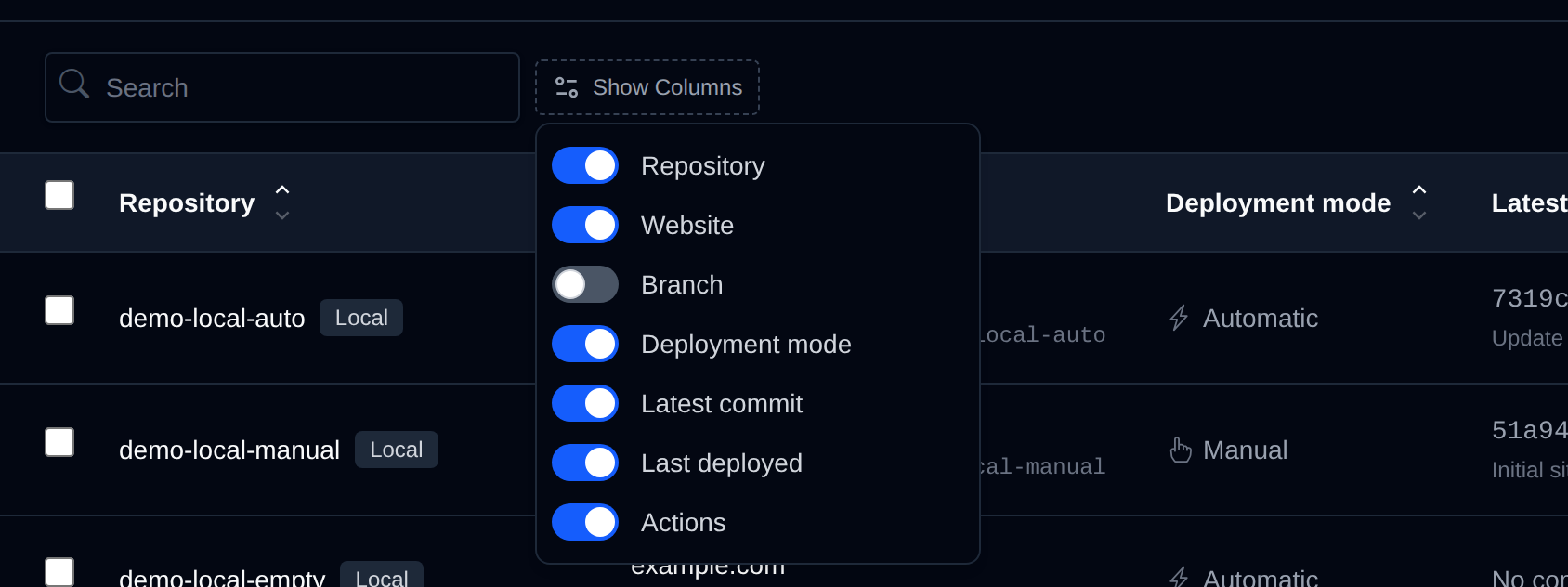
Use the search box to filter repositories by name, domain or URL, Show Columns to pick the columns (the Branch column is hidden by default), and the arrows next to a column name to sort the table.
The icons in the Actions column are:
- Pull Updates (remote repositories): fetches all branches from the remote.
- Deploy: deploys the latest commit of the selected branch.
- Commit log: opens the commit log.
- Settings: opens the settings under the row.
- Remove: opens the remove confirmation under the row.
Settings
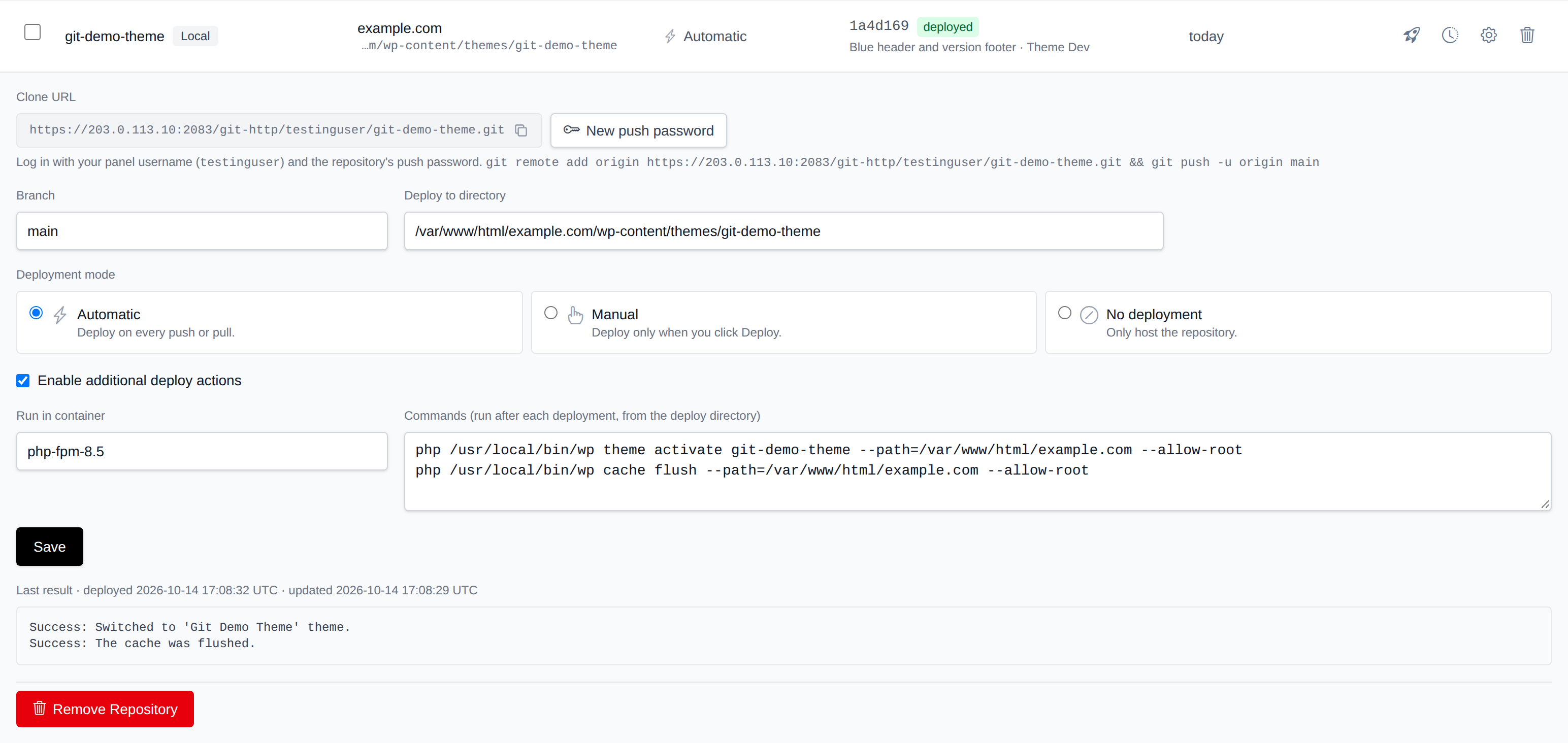
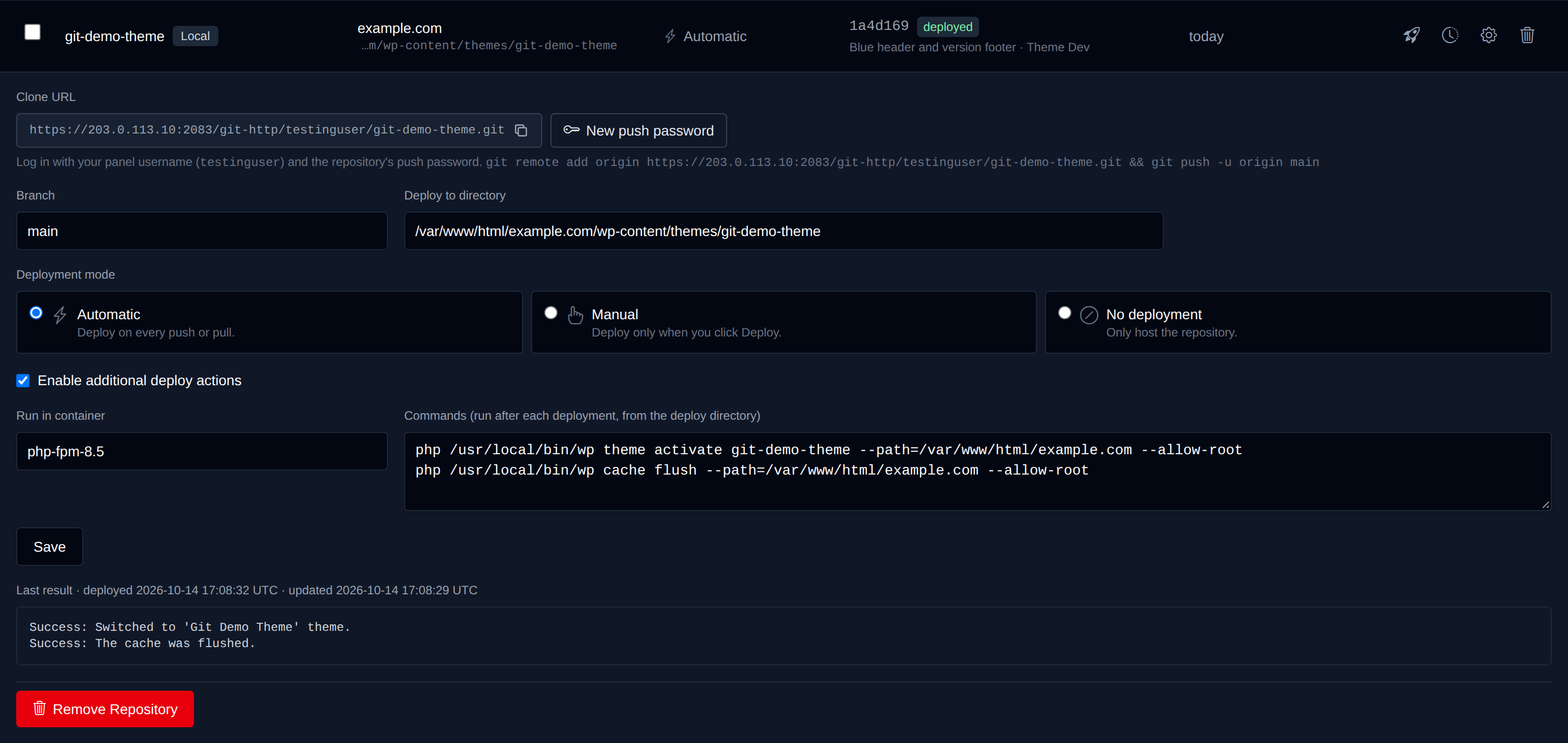
The settings show the Clone URL (local repositories) or Webhook URL (remote repositories) with a copy button, and let you change the branch, deploy directory, deployment mode, deploy actions and, for private HTTPS repositories, the username and access token. Leave the token empty to keep the saved one. Below the form you'll see the output of the last pull or deploy.
Commit log
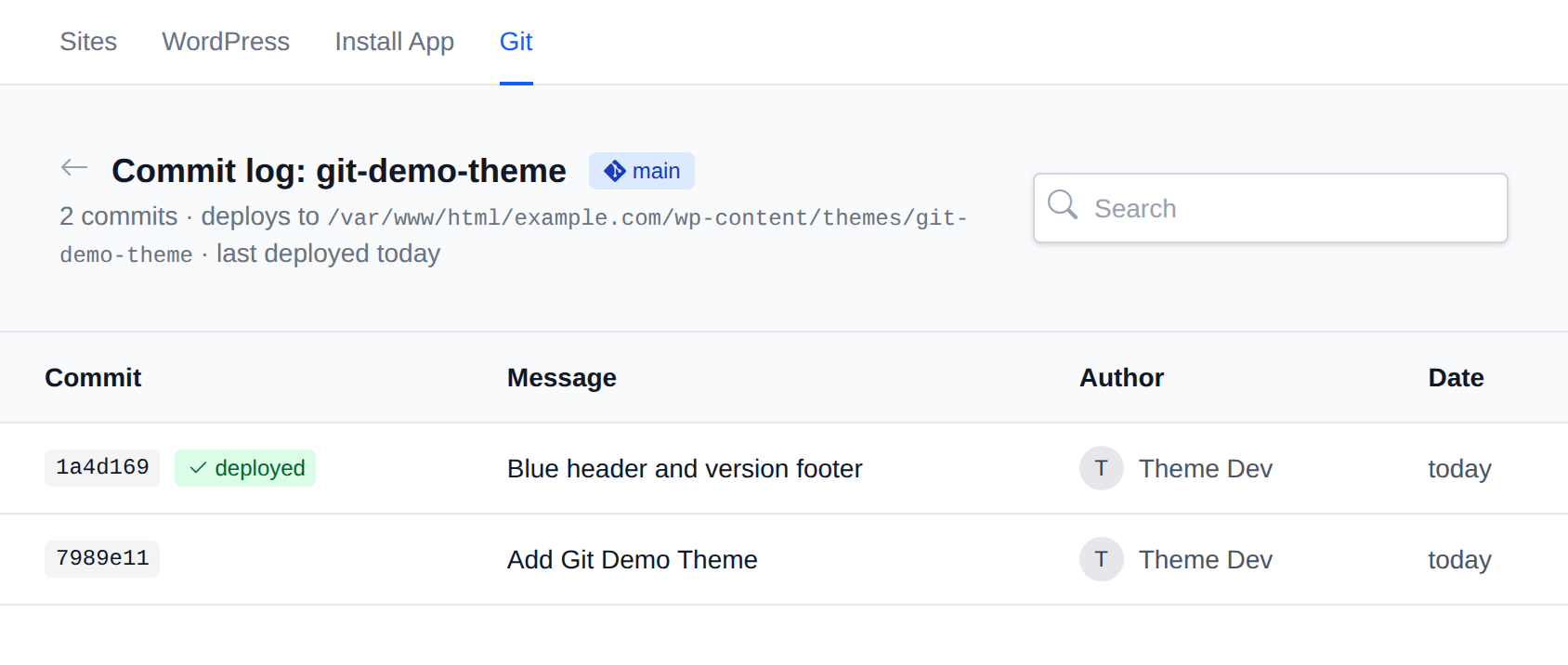
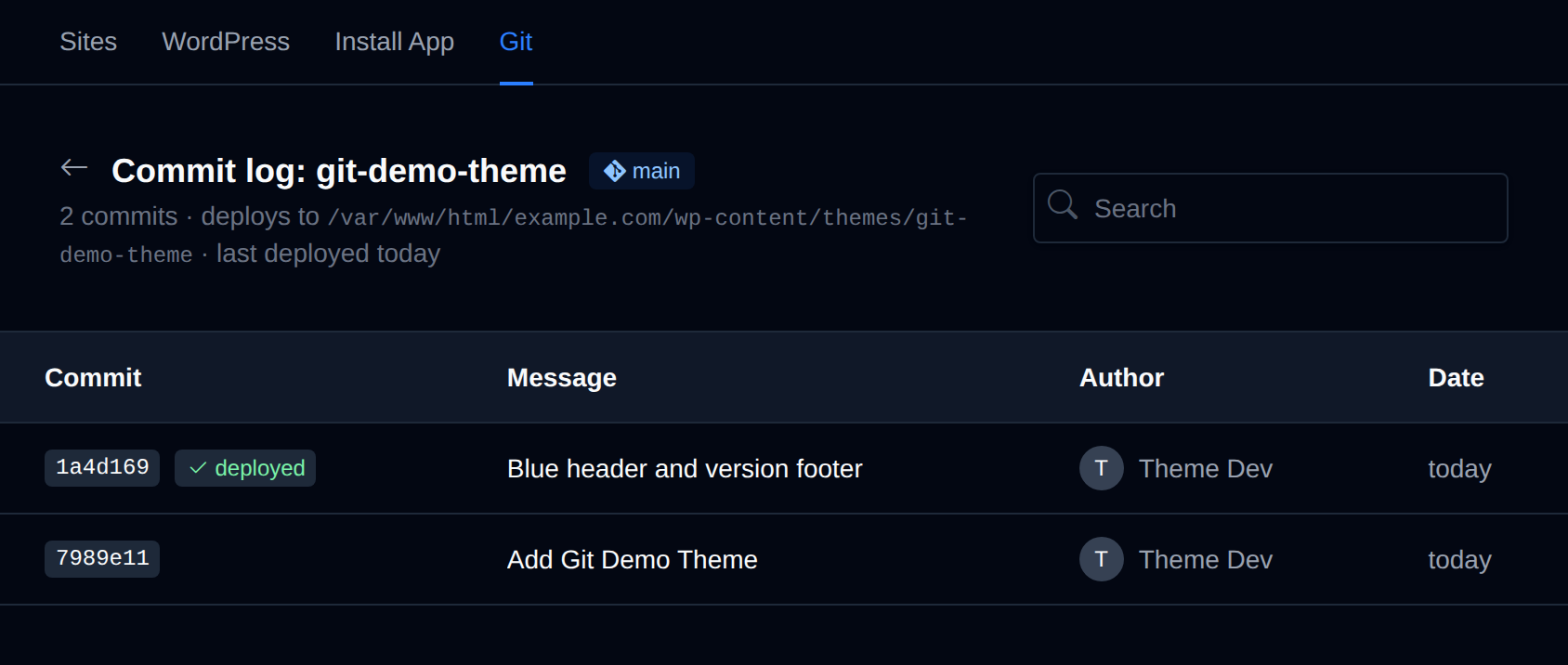
The commit log lists the last 100 commits of the selected branch with their author and date, and marks the commit that is currently deployed. Use the search box to find a commit by its hash, message or author.
Bulk actions
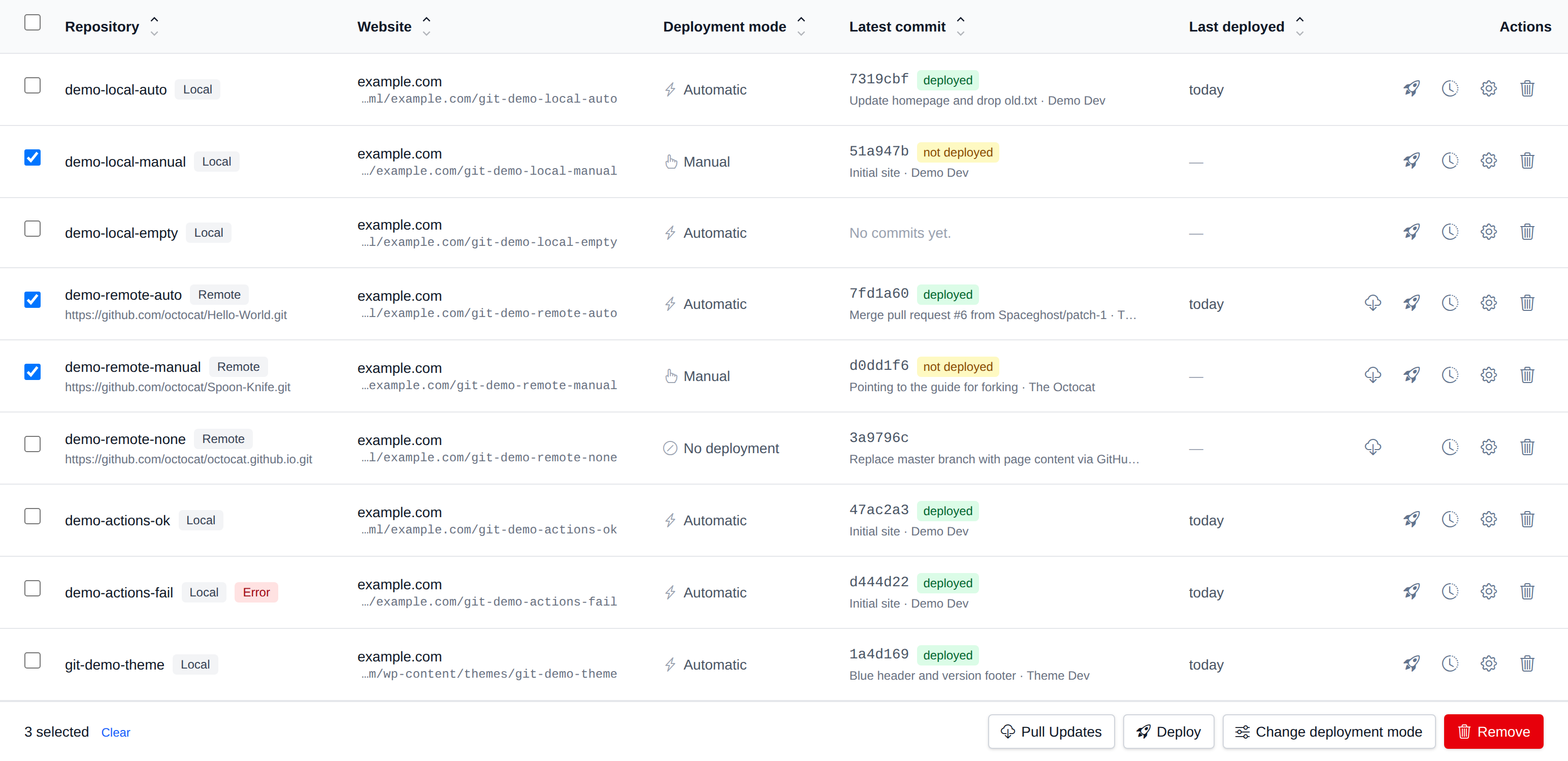
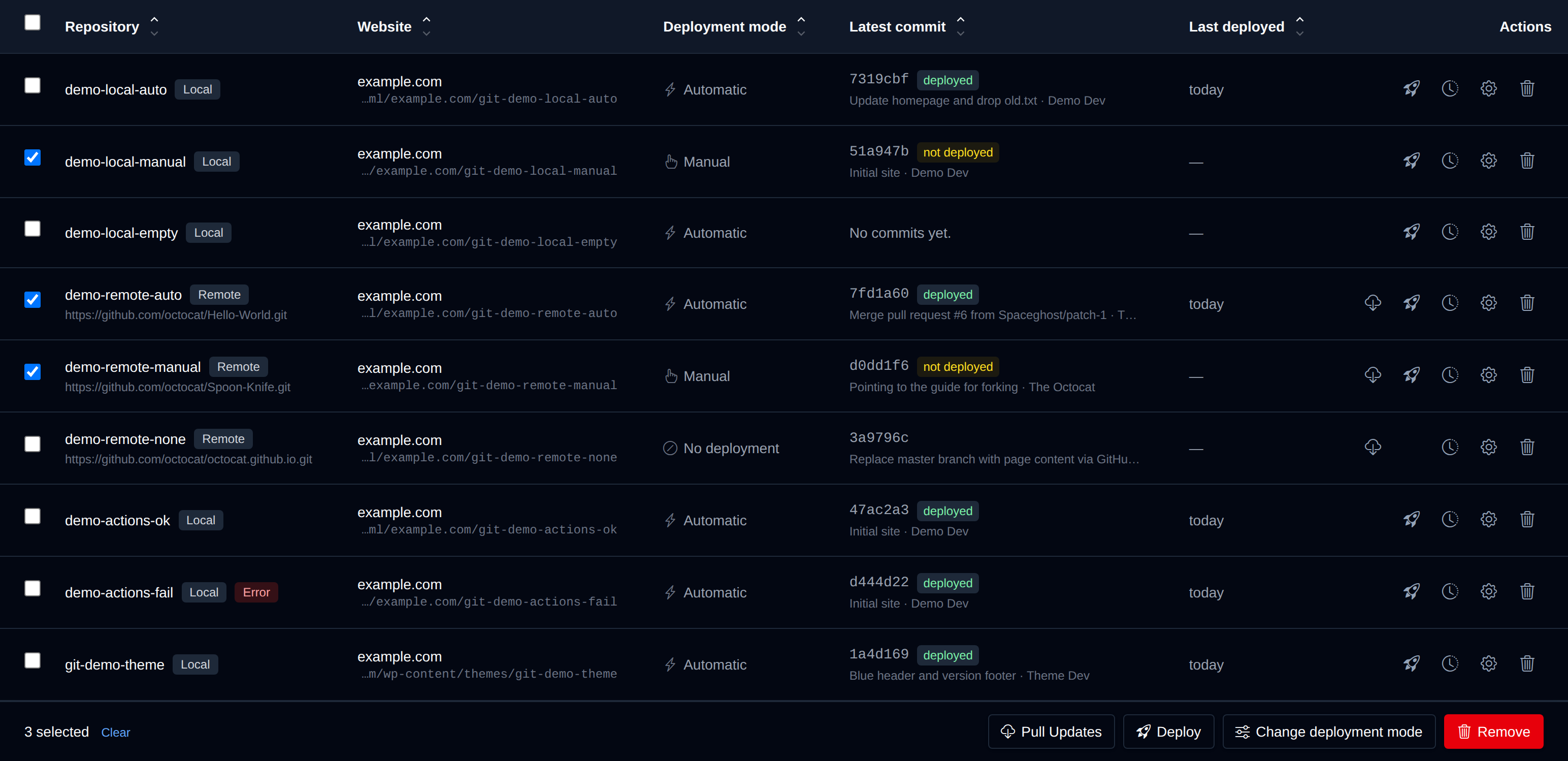
Select repositories with the checkboxes to Pull Updates, Deploy, Change deployment mode or Remove them all at once. Repositories that don't support an action (pulling a local repository, deploying one with No deployment) are skipped.
Remove


Removing a repository deletes it and its history from the server. Files that were already deployed to the website stay in place.
Git tab in the Site Manager
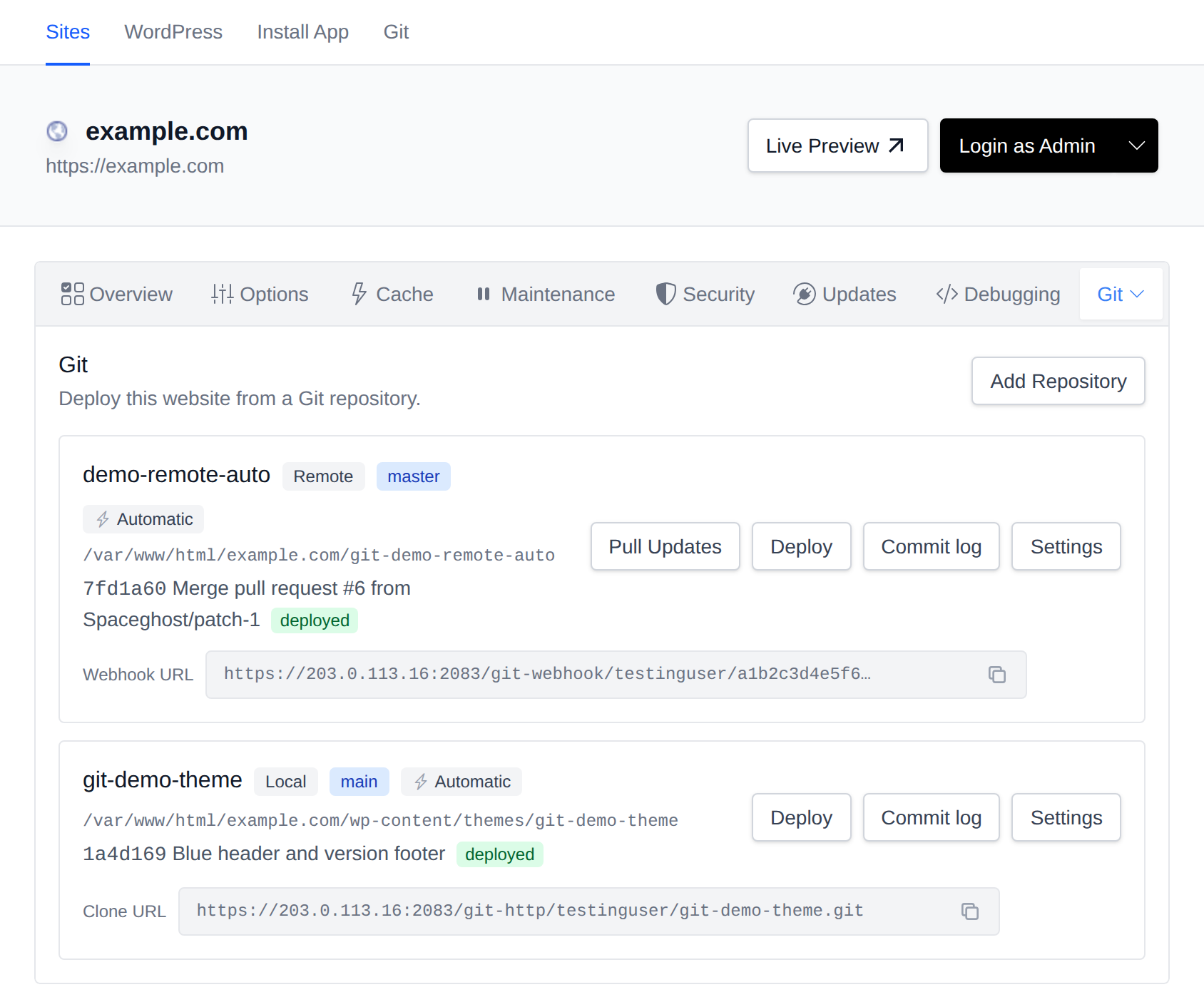
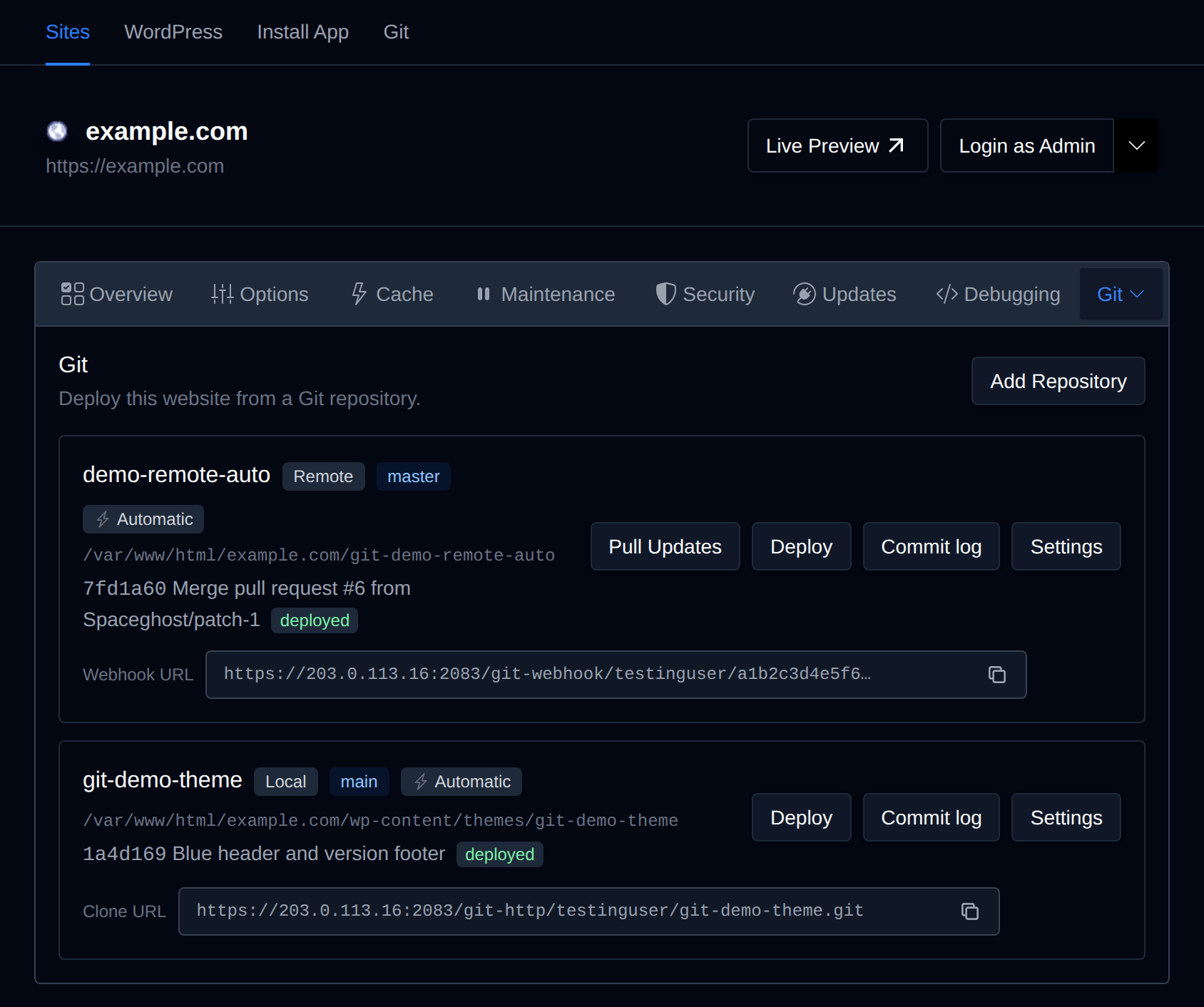
Every website in the Site Manager has a Git tab that lists the repositories deploying to its domain. From there you can add a repository with the website's folder already filled in, pull, deploy and copy the clone or webhook URL.
For a WordPress site, a common setup is a repository for your theme or plugin that deploys into wp-content/themes/<theme> or wp-content/plugins/<plugin>, with a deploy action that runs WP-CLI:
php /usr/local/bin/wp theme activate my-theme --path=/var/www/html/example.com --allow-root
php /usr/local/bin/wp cache flush --path=/var/www/html/example.com --allow-root
WordPress core, uploads and other plugins are not touched by the deploy.