Migrate Emails
The Migrate Emails page copies all folders and messages from an email account on another server (cPanel, Plesk, DirectAdmin, Gmail, Outlook or any other IMAP server) into one of your email accounts on OpenPanel.
The migration runs in the background with imapsync, so you can close the page while it works. Nothing is deleted on the old server, and messages that were already copied are skipped, so you can run the same migration again, for example right before you switch the domain's MX records.
Before you start
- Create the email account you want to migrate into under Email > Accounts. You need its password.
- Get the IMAP server, username and password of the old account from your old provider. For Gmail, Outlook and other providers with two-factor login, create an app password and use it instead of your normal password.
Starting a migration
-
Go to OpenPanel > Email > Migrate.
-
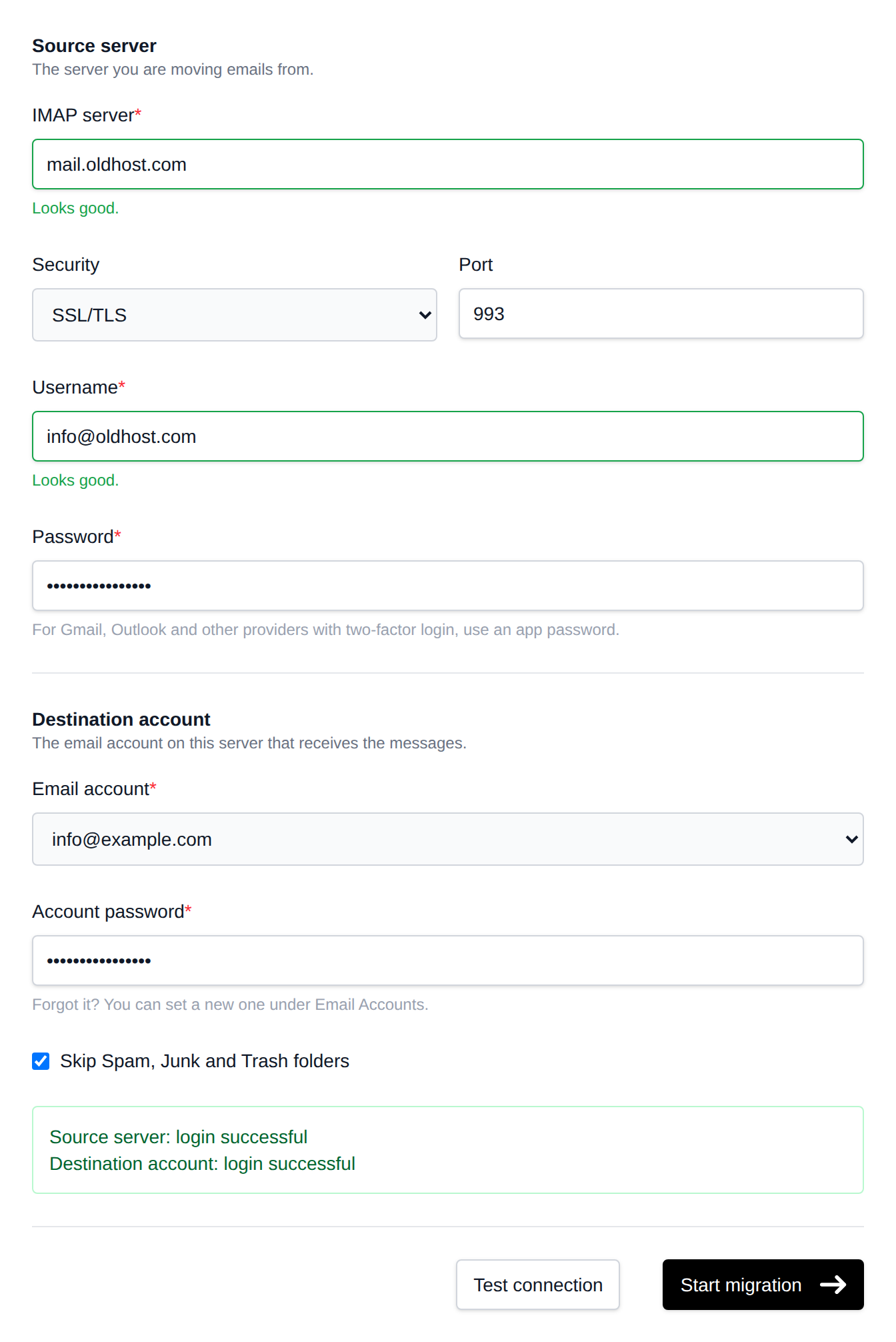
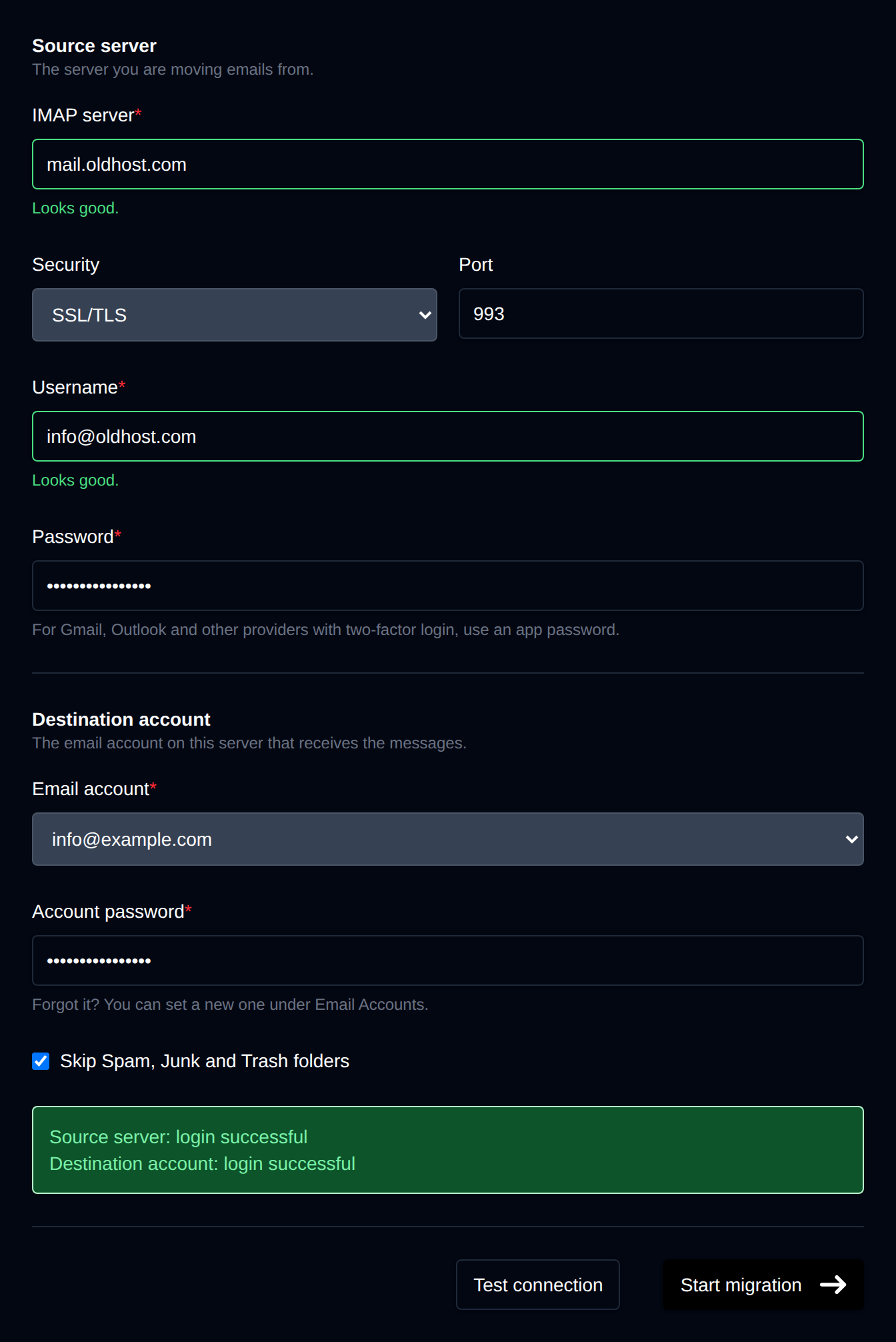
Under Source server, enter the old server's details:
Field Description IMAP server Hostname or IP address of the old server, e.g. imap.gmail.comormail.oldhost.com.Security SSL/TLS(port 993),STARTTLS(port 143) orNone. Use SSL/TLS unless the old server doesn't support it.Port Changes with Security, set it by hand only if the old server uses a different port. Username Usually the full email address. Password The password, or the app password, of the old account. -
Under Destination account, select your email account on this server and enter its password.
-
Leave Skip Spam, Junk and Trash folders checked unless you want those copied too.
-
Click Test connection. It logs in to both servers and shows whether each login worked, without copying anything.
-
Click Start migration.
The source server can't be a private or reserved address (e.g. 192.168.x.x or 10.x.x.x). To migrate from a server on a private network, ask your hosting provider.
Following the progress
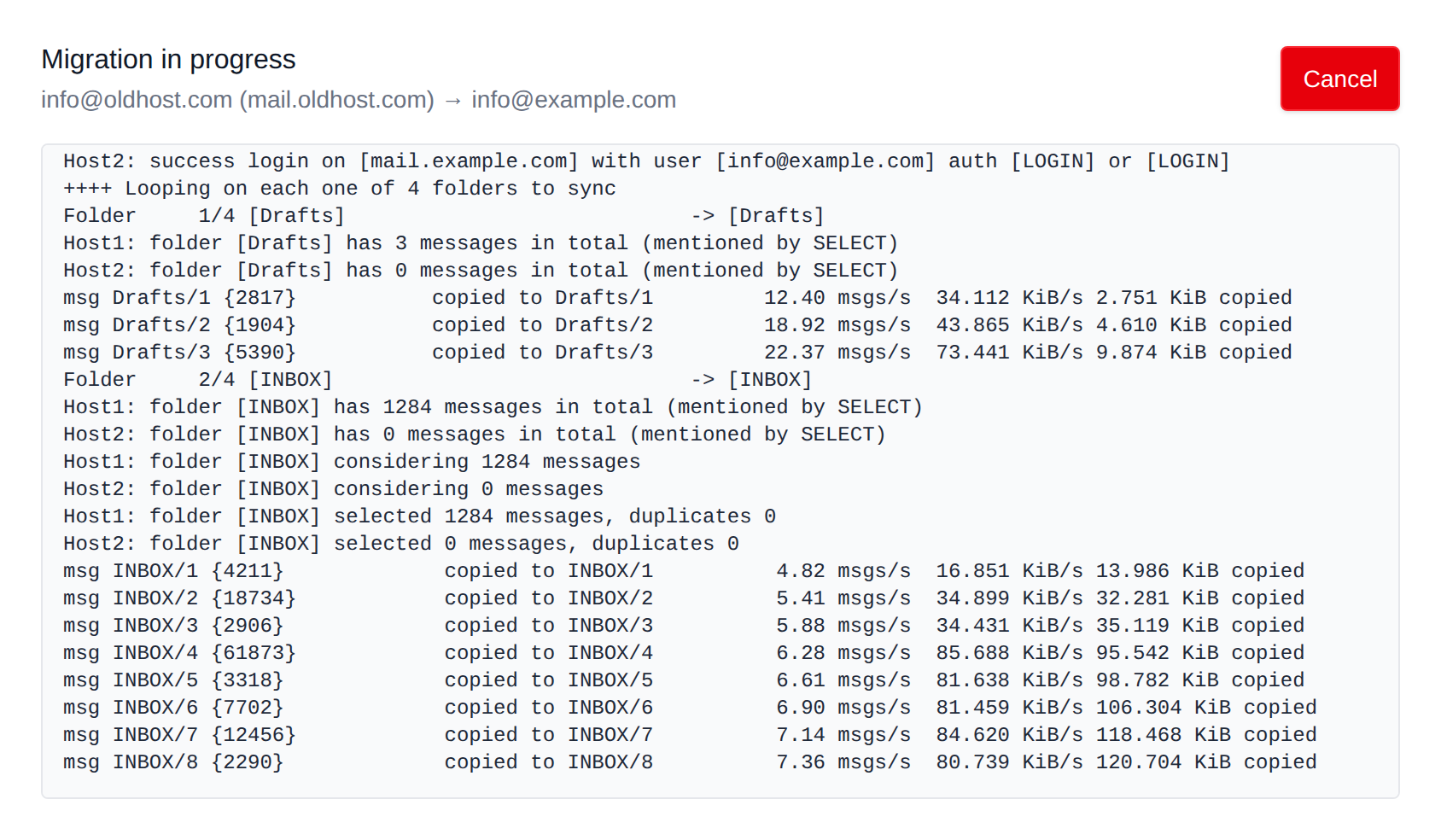
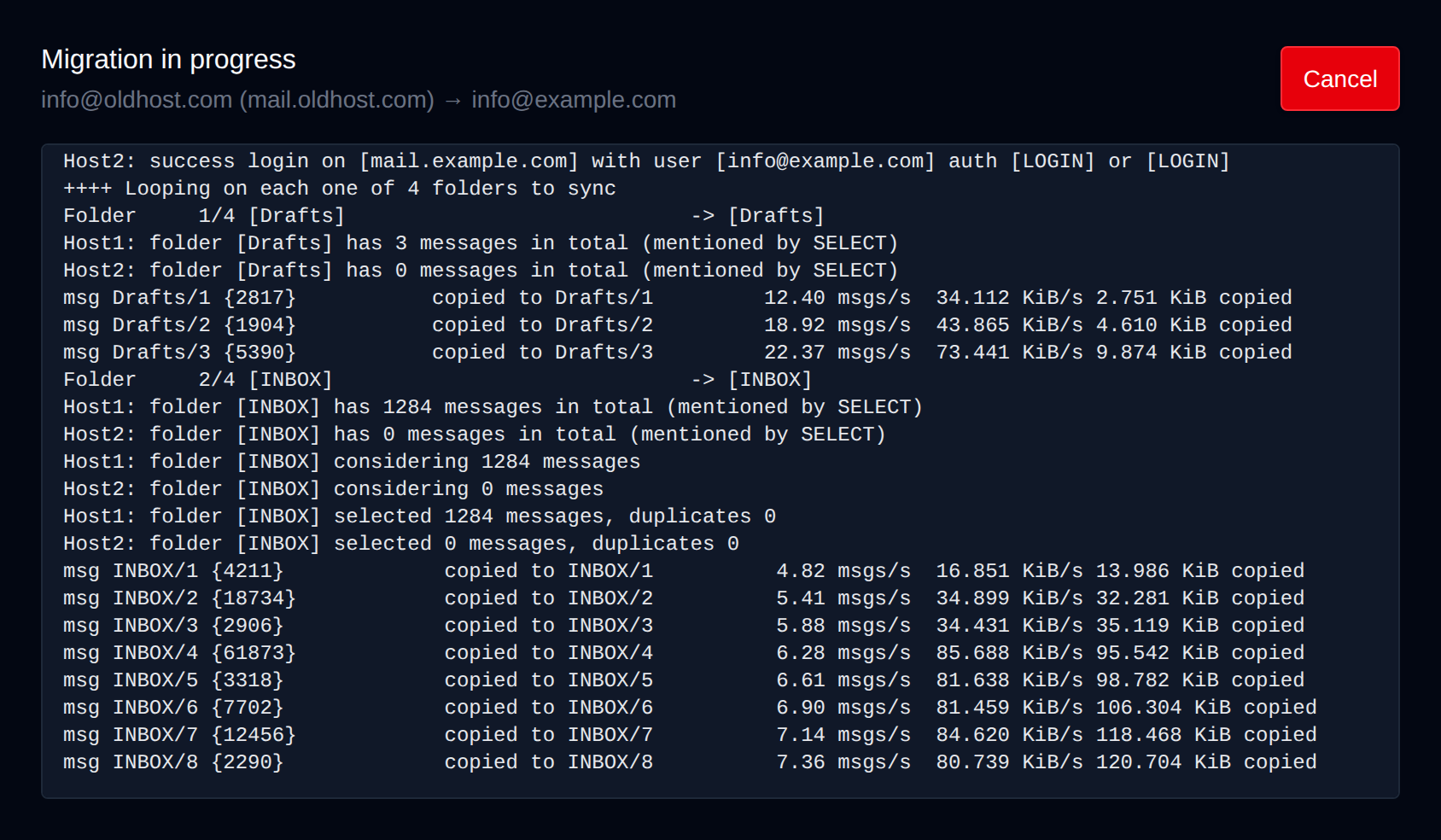
While a migration runs, the page shows its log as it is written, and the form is hidden. Only one migration can run at a time for your account, so start the next one when this one is done.
Click Cancel to stop it. Messages copied until then stay in the destination account, and running the migration again continues where it stopped.
Recent migrations
Recent migrations lists your last 10 migrations with the source and destination, and whether each one Completed, Failed or was Cancelled. Click View log to see the full log, for example to find which login failed or which messages couldn't be copied.
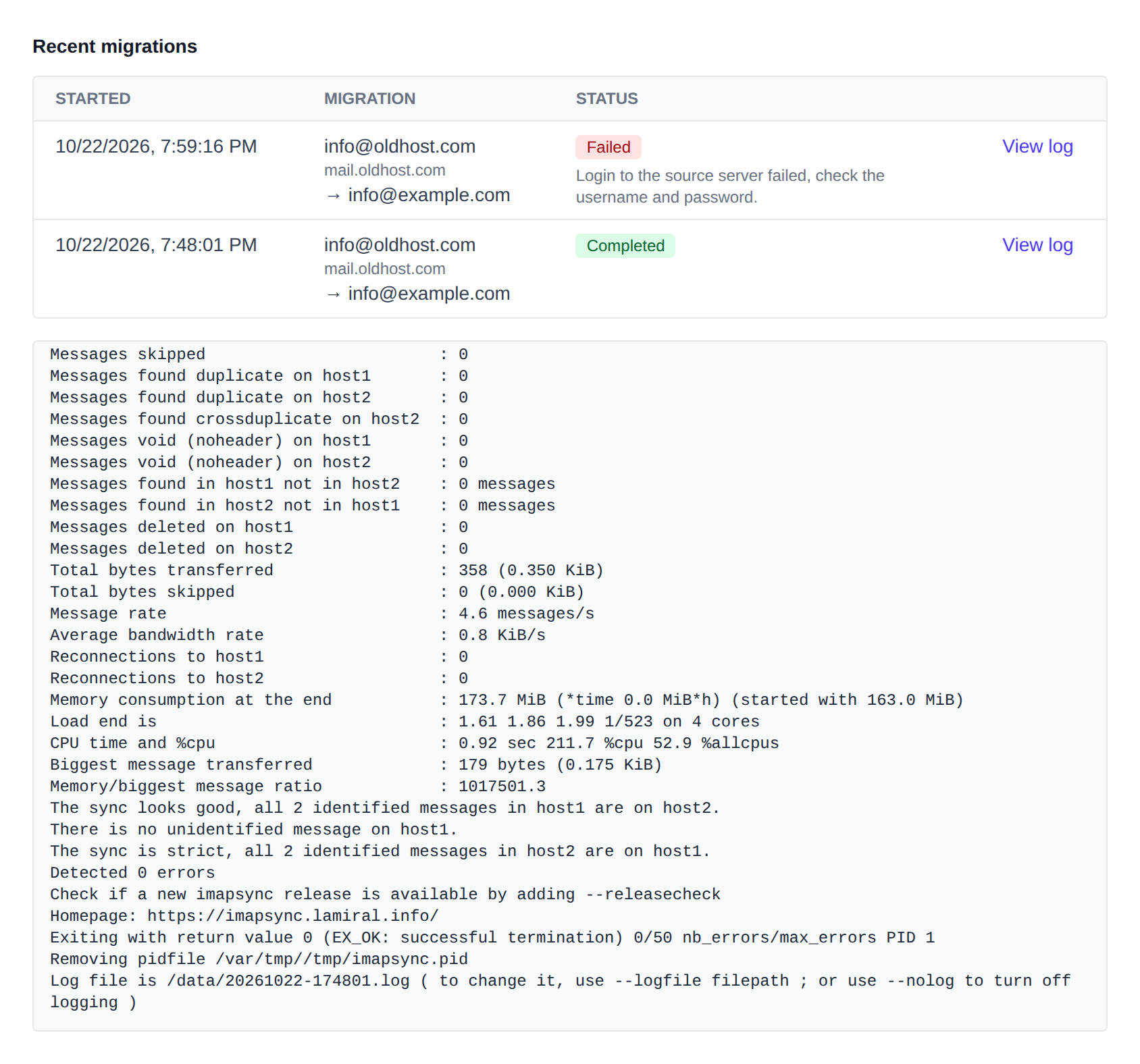
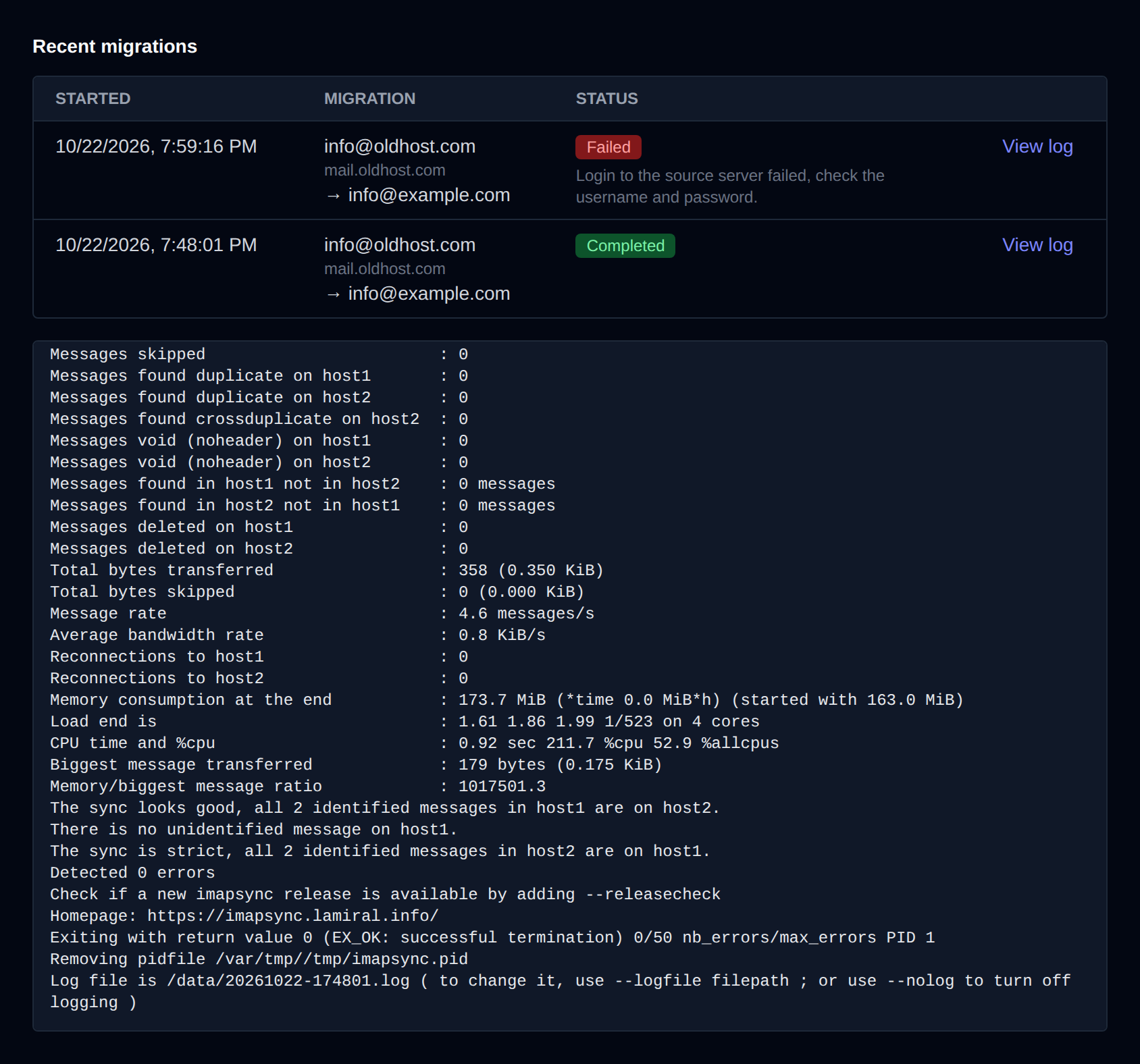
Common reasons for a failed migration:
- Authentication failed on host1 (the old server) or host2 (this server): check the username and password, and use an app password for Gmail and Outlook.
- Can not open imap connection: check the IMAP server, security and port, and that the old server allows IMAP access.
- Quota exceeded: the destination account is full. Raise its quota under Email > Accounts and run the migration again.
For administrators
The page is available when the email_migrate module is enabled under OpenAdmin > Settings > Modules and is in the user's feature set. These optional openpanel.config settings change how migrations run:
imapsync_max_jobs(default10): migrations running at once on the whole server.imapsync_timeout_hours(default24): a migration is stopped after this many hours.imapsync_memoryandimapsync_cpus(default512mand1): limits for each migration container.imapsync_starts_per_hourandimapsync_tests_per_hour(default10and30): per user.imapsync_allow_private(defaultno): set toyesto allow private source addresses.imapsync_host,imapsync_portandimapsync_security: where the destination mailbox is reached. By default that's the user's IP, on port 993 with SSL when it is open, otherwise on port 143.imapsync_image(defaultdocker.io/gilleslamiral/imapsync:latest): the imapsync image.
Each migration runs as an imapsync container under the user's account and is removed when it finishes. Logs are kept in /home/<username>/imapsync/.