Themes
A theme changes how OpenPanel looks: the layout, the sidebar and the dashboard. Your files, settings and features stay the same whichever theme you use.
Available themes
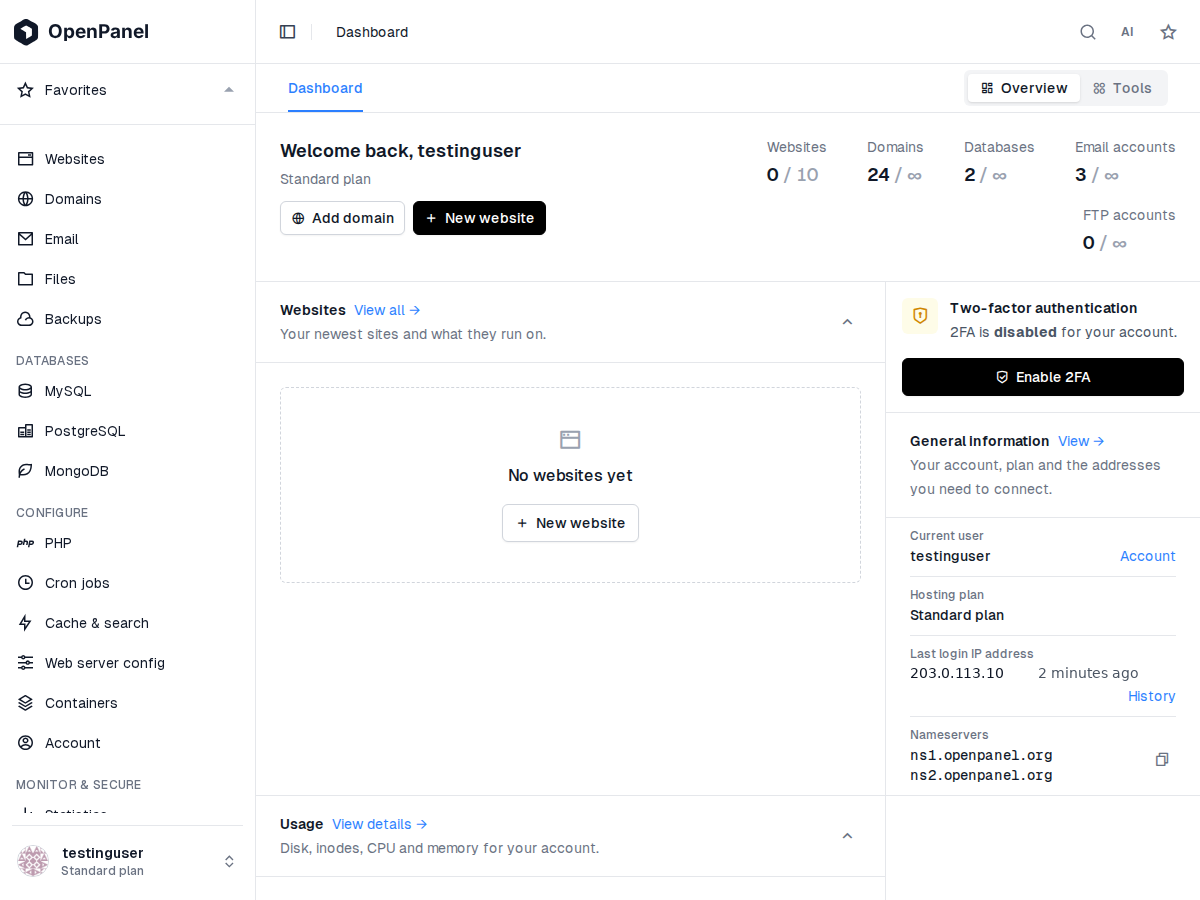
Default is the theme built into OpenPanel. The administrator can pick a different one for everyone, install one of the official themes or add a custom theme.
Default
The built-in OpenPanel theme.
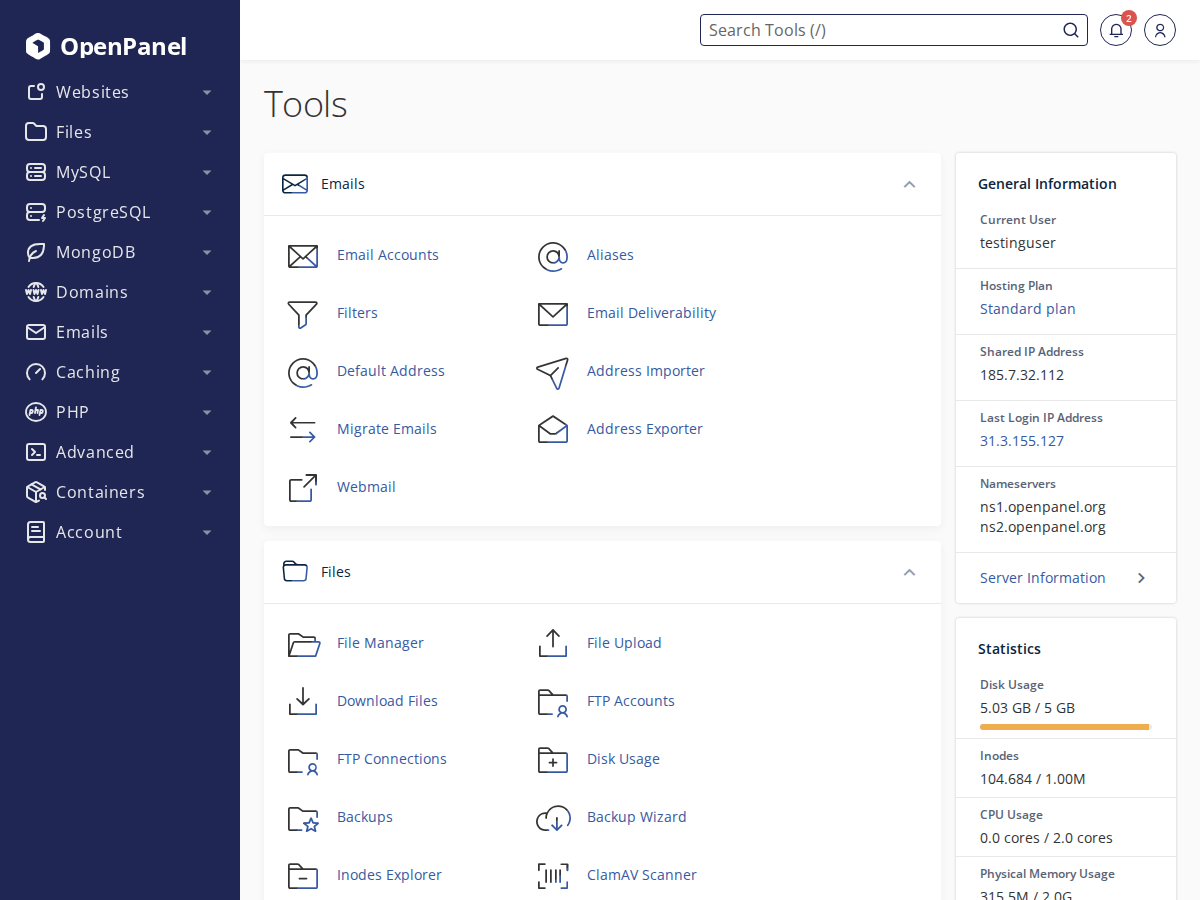
Saturn
A classic hosting panel look: navy sidebar, a Tools dashboard with General Information and Statistics, and striped tables.
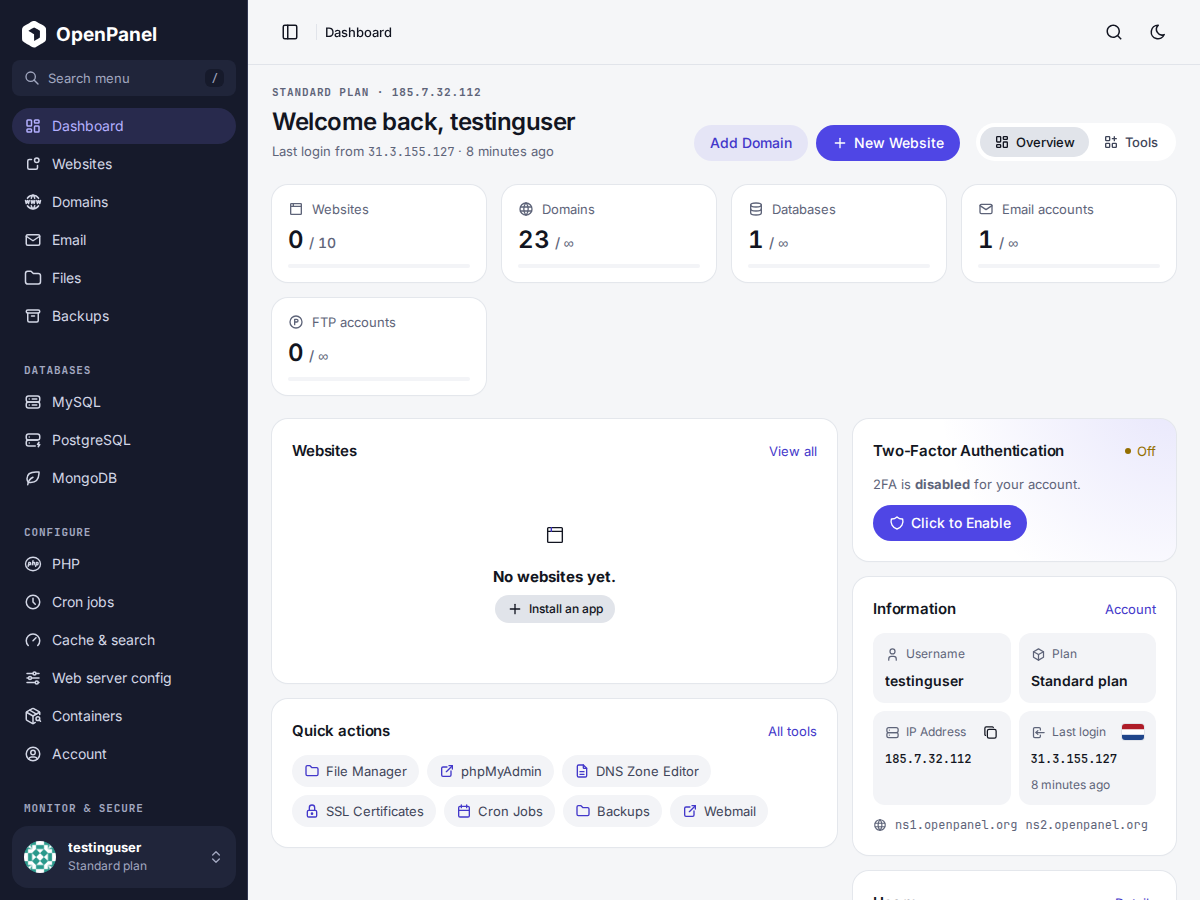
Modern
The redesigned panel: a sidebar layout, Overview and Tools views on the dashboard and a guided app installer.
Who picks the theme
The administrator sets the theme everyone gets in OpenAdmin > Settings > OpenPanel > Display: Default, one of the installed themes, or one of the official themes, which can be installed from the same page. Custom themes can be added too, see How to create and install themes.
The administrator can also turn on Users can switch theme. Then every user can pick any installed theme for their own account, and the theme selected by the administrator stays the default for everyone who doesn't.
Change your theme
When Users can switch theme is on and more than one theme is installed:
- Click your profile at the bottom of the sidebar.
- Next to Panel theme, pick a theme.
The page reloads with the new theme right away. You can also pick a theme in the first step of Onboarding when you log in for the first time.
Your choice is saved for your account only. If the theme you picked is later removed from the server, your account goes back to the default theme.
If you don't see Panel theme in the menu, the administrator hasn't turned on theme switching, or only one theme is installed.